
Friends and watch parties
This page is for sharing with other people through Mantle Together: making friends, sharing a list, and watching one title together in a party. You need a Mantle account for friends and shared lists. A party can be joined without one.
| To | Read |
|---|---|
| Make a friend | Add a friend |
| Work on a list with others | Shared lists |
| Watch the same title at the same time | Watch parties |
| Open an invite, party or device link | Links |
Add a friend
Friends are made between profiles, by invite alone. There is no directory and no search. A profile has friends once it syncs. In Settings → Account, the group is named for the profile you are in, such as "Alex's friends".
- Beside Invite a friend, press Invite. Mantle shows the invite's QR code and its code, of 24 letters and digits: "For one person: they scan the QR code with their phone’s camera, or enter the code in Mantle, under Settings, then Account, then Accept an invite. It works once, for a week."
- Send it: Copy link copies its link (
https://app.mantlevid.com/#friend=…), and Copy code copies the code. - Your friend scans the QR code, or opens the link. Or they press Enter code beside Accept an invite, type the code (or paste the link) and press Next.
- Mantle says who made it, with their picture: "Alex invites you to be friends". They press Accept, and the two profiles are friends. Cancel accepts nothing, and the invite stays for them to accept later.
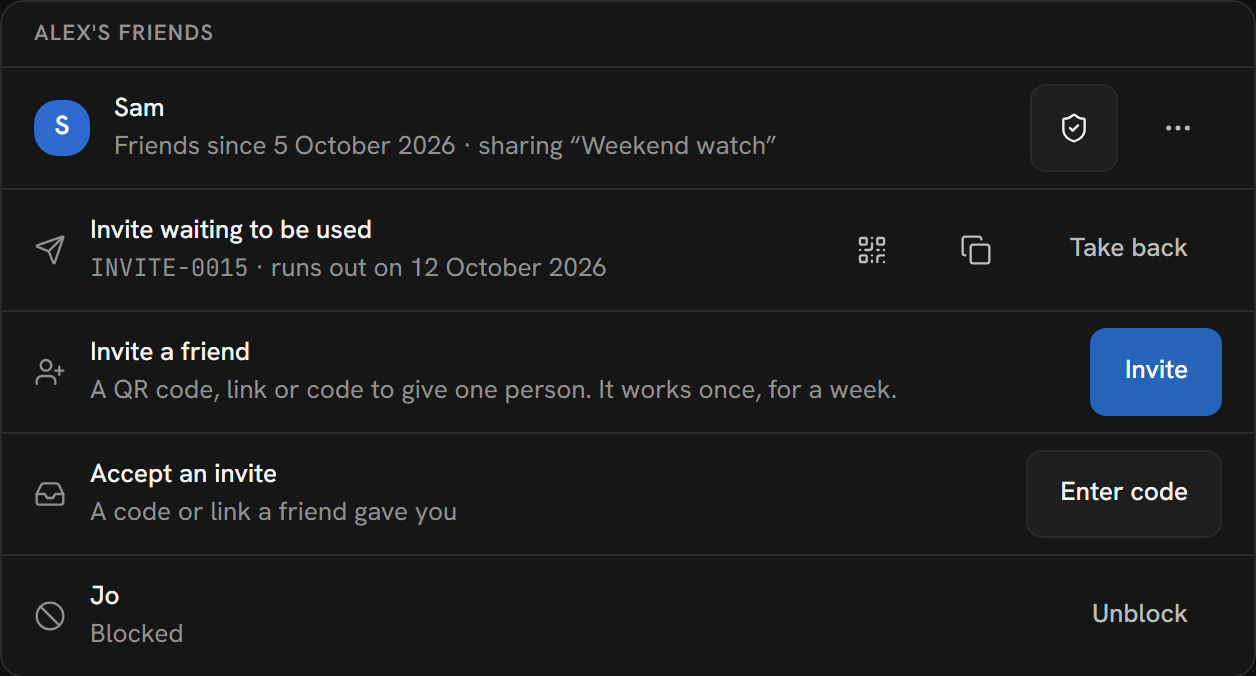
Until it is used, the invite shows as "Invite waiting to be used", with its code and when it runs out (a week after it was made). Show its QR code shows it again, and Take back cancels it.
Looking at an invite does not use it, so anyone who has its link or code can open it again. They see the name, colour and picture of the profile that made it, so give it only to the person you mean.
An invite is refused, with "that invite is used, has run out, or is not there", when it is used, has run out, is not there, or one of you has blocked the other. An invite from your own account is refused too. A Mantle that can't accept it says why: "Sign in to your Mantle account first, then open the invite’s link again", or that the profile you're in is on this device alone and can't have friends until it syncs.
Each friend’s row says since when you are friends and which lists the two of you share: "Friends since 5 October 2026 · sharing “Weekend watch”".
To be sure a friend is really them, press Check it’s Riley. Mantle shows the safety digits for you and Riley, and says to compare them with Riley’s, in person or on a call. If Riley’s Mantle shows the same digits, only the two of you can read what you share: press They match, and the row is marked Checked on every device of your household. If they differ, press They differ: Mantle says to look again to be sure, and, if they still differ, not to share anything with Riley yet, to unfriend Riley (it asks you to confirm, as Unfriend in the friend’s More menu does) and to ask for a new invite, in person if you can. A friend you unfriend and befriend again is a new friend, and is not checked until you check them again.
More (three dots) beside a friend:
| Choice | What it does |
|---|---|
| Unfriend | "You stop sharing with each other. Either of you can invite the other again." |
| Block | "You stop sharing with each other, and they cannot become your friend again until you unblock them. They are not told." Blocked profiles are listed with Unblock. |
Friends who part leave each other's shared lists, and are no longer invited to each other's parties.
What happens among friends
Mantle tells you when something happens that you would not otherwise know, as it finds it while it syncs (it asks the service for nothing more): "Sam accepted your invite", "Alex shared “Weekend watch” with you" (with Open), "“Weekend watch” isn’t shared with you any more: it’s yours now", or "You and Sam aren’t friends any more". Each is said once, as a note at the bottom of the window, to the profile it happened to. A list that was just shared with you has a dot on its chip in the Library until you open it. Under the friends, Lately lists the last week’s, newest first. A device just signed in does not tell you about the lists you already had. Each of your devices tells for itself: two of them running when something happens both say it, and a list’s dot goes from the device where you open it.
Shared lists
A synced profile can share a list with the household's other profiles synced on this device, and with its friends.
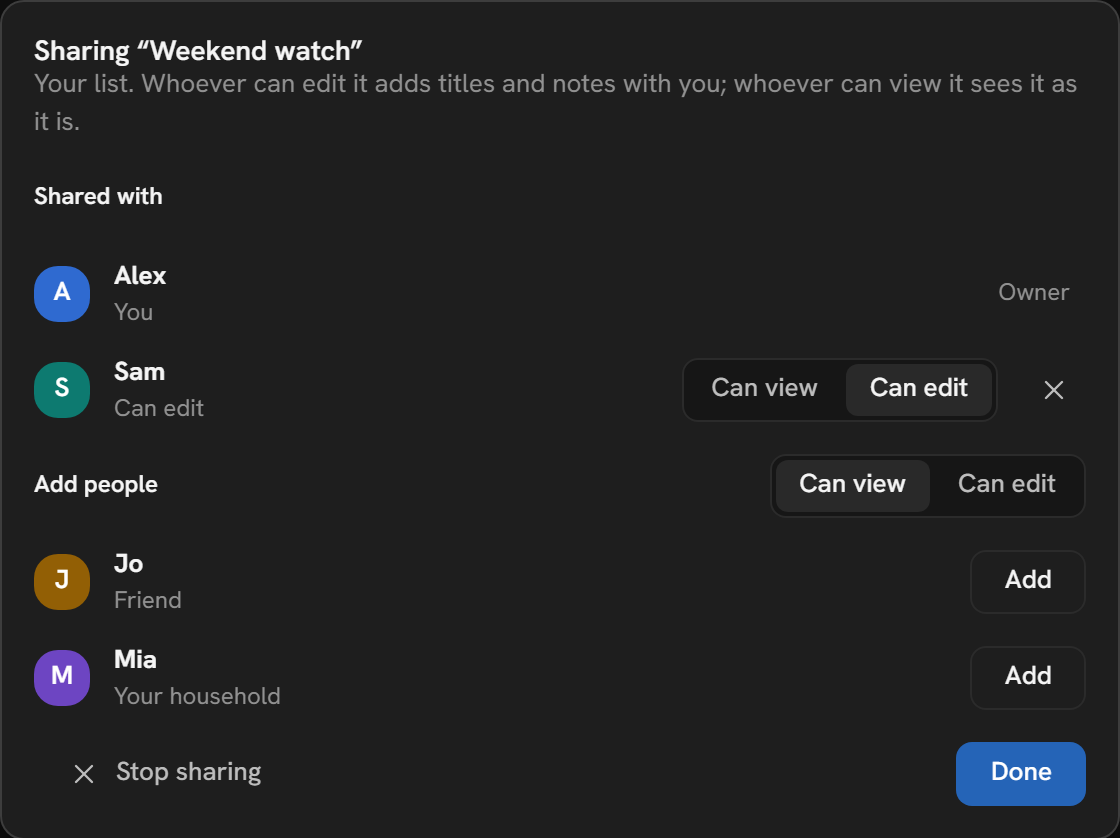
- In the Library, open the list. Press List options (three dots) and choose Share….
- Under Add people, pick Can view or Can edit, then press Add beside each person. Each is marked "Your household" or "Friend".
- Press Done.
| Role | What they do |
|---|---|
| Owner | Changes the list, chooses who shares it and what each can do, and can stop sharing it. |
| Can edit | Changes the list with the owner: adds and removes titles, writes notes, renames it. |
| Can view | Sees the list as it is, and changes nothing. |
A list that is someone else’s reads "Alex’s list · you can view it" in its header, and "Alex’s list. You can view it, and Alex changes it." in its sharing panel.
A shared list's name, rules, titles and their order, and the notes on them, sync to everyone in it. The service says who shares it and what each can do; each device names the people as it knows them, and a person it does not know is "Someone". A note is its writer's: someone who can edit the list cannot post a note as another, or change or take away another's. Only the owner's descriptions of a title are taken, and never a picture of theirs: each device describes a title from its own plugins.
A smart list (one made by rules, such as Backlog) shares its rules, and the titles they match are each person's own, from their library and what they have watched. Someone who can edit starts a note on a title only while it is in their own view of the list. A written note can be read, and answered by those who can edit, whether or not its title matches for them now.
To stop:
- Stop sharing, the owner's: "Everyone keeps it as it is now, as a list of their own. Changes stop going between you." Deleting the list stops sharing it too.
- Leave list, anyone else's: "You keep it as it is now, as a list of your own. Changes to it stop coming."
A profile on this device alone cannot share: "Lists are shared from a profile synced to your account. Sync this profile in Settings, under Account."
Watch parties
A watch party plays one title for several people at once, each from their own sources. Anyone with its code or link joins, with or without an account. A device is in one party at a time. Everyone in a party needs 0.3.0 or newer.
Start a party
- Press Watch together in the top bar or the player. On a phone, it is in More, and in the top bar on the pages that have one.
- Press Start a party (in the player, Start a party with …). Then play something: everyone in the party watches it.
- Press Invite for the party's link (Copy link) and its code, 32 letters and digits in groups of four. The QR code icon beside the link shows the link as a QR code: "Scan it with a phone’s camera to join the party."
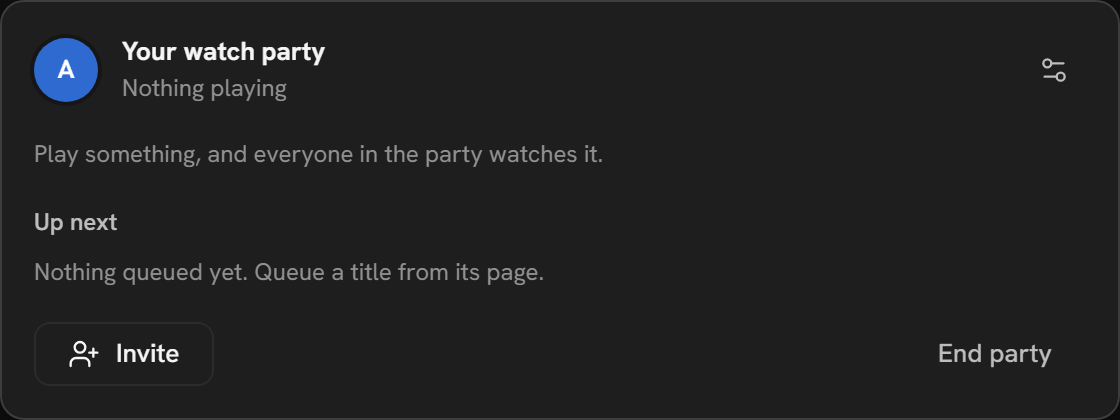
A host whose profile syncs can also invite, by name, the household's other profiles synced on this device and the profile's friends, under "Or invite by name".
Join a party
- While you are in a party, the top bar shows it as a pill: the people in it, what is playing and how many are watching, and Back to it (Join them for a guest). Press the pill for the party's panel. It is on every page but the player (which has its own Watch together), and on a phone the top bar comes back on Home, Library, Search and Downloads to hold it. The pill covers nothing, and it is named by what it shows, for a screen reader too. In a narrow window the title shortens, then goes, and the people and Back to it stay.
- An invitation by name shows over the page ("Riley invites you to watch together") and in Watch together: at the bottom left, or on a phone at the top, under the top bar. A device asking to be approved shows over the page too: on a computer at the bottom right, on a phone under the invitations in the same column. Press Join, or Not now.
- With a code or link, press Have a code or link? in Watch together, paste it and press Join.
- A party's link opened in the web build, or its QR code scanned, asks "Join the watch party?". Press Join.
Leave leaves the party. The host's End party ends it for everyone: "Each can carry on watching alone." A party whose host is gone is over.
How a party plays
The host's player sets the pace, and the others' players follow it. A guest's player a little behind or ahead plays a little faster or slower until it is back with the host's. More than two seconds off, it goes to where the host's is.
| What happens | |
|---|---|
| Who controls | The host's Party settings: "Who plays, pauses and switches", Everyone or Only me. A party starts with Only me. Anyone in the party queues. |
| A guest who controls | Their play, pause and seek are everyone's. Playing another title asks "Play it for everyone?": For everyone or Just me. |
| A guest who does not | Pausing or seeking steps away from the party ("You stepped away from Riley."). Catch up goes back. |
| Sources | A guest's player plays from the source the host's plays from, wherever the guest has that source too: the same torrent, through their own provider, or the same item on a server they share. In the player's Sources, it is marked with the host's name. Picking another is the guest's own choice, and stays; Use Riley's goes back. |
| Up next | Queue for the party on a title's page. The host's player plays the queue in turn. |
| Buffering | The party waits for whoever is buffering ("Waiting for Sam…"), until they have a few seconds of what comes next, unless the host turns off Wait for anyone buffering. It starts on. Nobody waits for a guest who stepped away. |
| Speed | A guest follows the speed the host plays at, whatever its own device: everyone in the party plays at the speed the host picked. A device or a network that cannot keep up buffers or drops frames, as in any player. |
| Another version | When someone’s version is more than a minute longer or shorter than yours, the player says you may drift apart, and the party’s list of people says "Their version is 4 minutes longer". A version shorter than the host’s stops at its end, paused, while the host’s plays on. |
| Chat | Party chat in the player: "Only the party sees what is said here." A message has up to 500 characters. |
| Reactions | React in the player, then one of eight reactions. It rises over the picture for everyone. |
Links
Links carry a party, a device or a friend invite between devices.
| Link | What it does |
|---|---|
A party's, https://app.mantlevid.com/#party=… |
Opens the web build, which asks "Join the watch party?". |
A device's, …#pair=…, in its QR code |
Opens the web build at Settings → Account, which asks "Approve this device?": tap the number the device in front of you shows. |
A friend invite's, …#friend=…, also in its QR code |
Opens the web build at Settings → Account, which says who made it ("Alex invites you to be friends") and asks to accept it. |
A link can also be pasted where its code goes: Have a code or link? takes a party's link, Add a device a device's, and Accept an invite a friend invite's.
A Mantle that cannot approve from a device's link says why, for example "Only a profile that manages your account adds devices. Switch to one, then open the link again." While the first run is not finished, it says "Finish setting up Mantle first, then open that device’s link again." A party's link opens the web build of its own channel. A release and a beta join each other's parties by the link, opened or pasted; a build made from the source between releases says the party is in another Mantle, and to open the link there. See Channels.
On an Android phone's browser
In an Android phone's browser, Mantle can hand these links to the Android app:
- "Join the watch party?" has Open in the Mantle app, which hands the party to the app.
- A device's link, in a browser signed in to no account, asks "Approve it in the Mantle app?": "This browser isn’t signed in to your account. The Mantle app on this phone, signed in to it, approves that device." Press Open in the Mantle app.
- A friend invite's link, in a browser signed in to no account, asks "Accept it in the Mantle app?" the same way.
If the app does not open, Mantle asks whether it is installed: "The Mantle app didn’t open. Is it installed on this phone?" Once the site has published the app's link file, Android opens the site's own party, device and friend invite links in the Mantle app, if it is installed, instead of the browser.
On Windows
The desktop app opens mantle://party/…, mantle://pair/… and mantle://friend/… links itself once you turn on Open Mantle links here, in Settings → General → Links. It registers them for your Windows user alone (no administrator needed), and turning it off takes them back. The row says what opens them now: this Mantle, another program, or nothing. A link opened while Mantle runs goes to the window that is open, which comes forward; Mantle never runs twice for one data folder.
This page is made from docs/guide/friends-and-parties.md in the repository.