
Mantle Together
Mantle Together is your household's Mantle account. It is optional: everything else in Mantle works without one. This page is for signing in, adding devices, choosing what syncs, and knowing what the account's service can see. For friends, shared lists and watch parties, see Friends and watch parties.
Sign in on each of your devices, and the profiles you sync stay in step across them: library, lists, watch progress and settings, and what the household shares, such as its plugins' settings. Everything a profile keeps is encrypted on your devices, with a key only your devices have, before it reaches the account's service.
You find it in Settings → Account, where the app calls it your Mantle account.
Sign in or create an account
Signing in and creating the account are the same steps: an email the service doesn't know yet makes your household's account, and one it knows signs in to it.
- Open Settings → Account. In the Mantle account group, beside "Sign in or create an account", press Continue with email. (The first run's Account step has the same button: see Getting started.)
- Type your email and press Send code.
- Mantle emails you a code: "We sent a code to … Enter it here." Type it and press Sign in. A new account says "Your account is ready", and shows its recovery code (below).
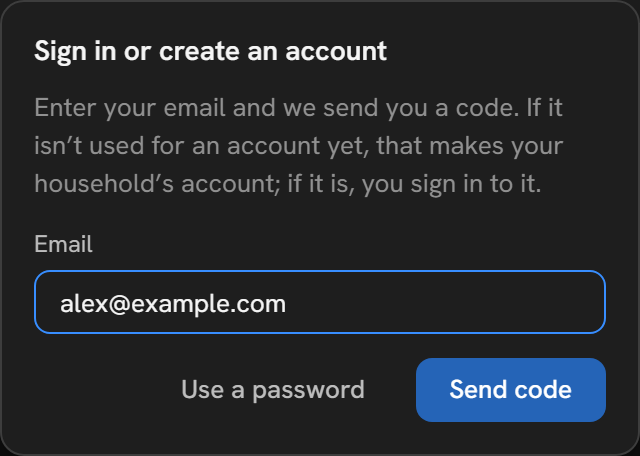
If the code does not come, Send again sends another. It waits 30 seconds after the last, and reads "Send again in 20 s" meanwhile. Another email goes back to the email.
Use a password signs in with the account's password instead, once it has one: type it and press Sign in. Use a code goes back. To give the account a password, open the Account group at the end of Settings → Account and press Set password beside Password. It needs at least 8 characters, typed twice.
The recovery code
The device that makes the account makes its key and a recovery code. Mantle shows the code once, at the top of Settings → Account, under Your recovery code: "Write this down and keep it somewhere safe. If you lose every device, it brings your profiles back. Mantle can't show it again."
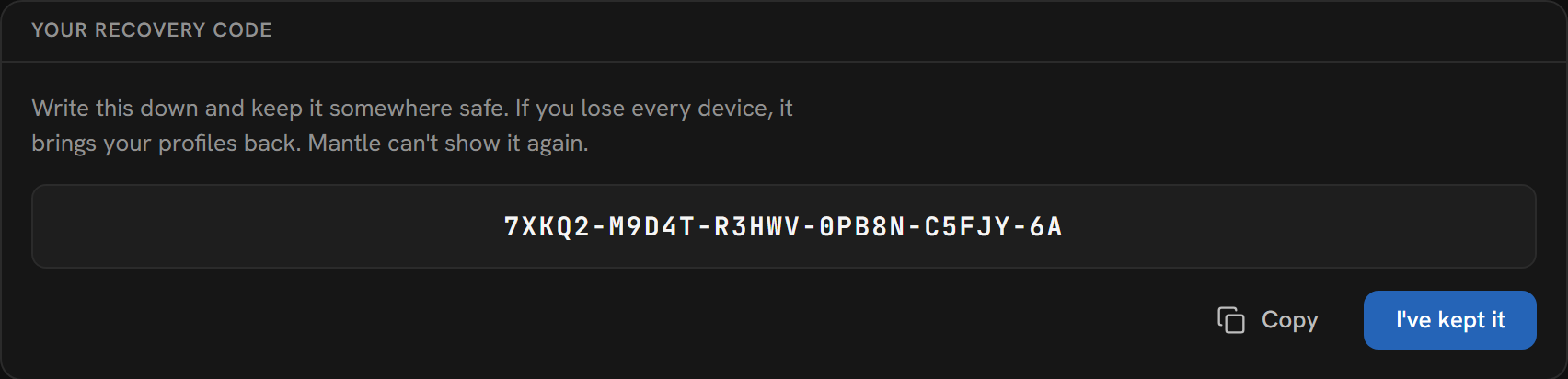
- Copy copies it.
- I've kept it asks once more ("Kept it somewhere safe?"), then puts the code away for good.
A recovery code is 27 letters and digits, in groups of five. With it, a device signed in with the account's email gets the account's key without another device's help.
If yours is lost, or someone has seen it, press New code beside Recovery code in the Account group. The code you had stops working, and the new one is shown once, as above.
Only a device that holds the account's key makes a new code, or deletes a profile or the account. Someone who can read your email and signs in with it on a device that has no key can read nothing, cannot make your written-down code useless, and cannot delete anything: that device is told "The account does not know this device holds its key yet". The service takes a device to hold the key when it made the key, when a device that holds it approved this one, or when this one shows the service a secret only the key gives (a device does so by itself as it syncs, and before a new code or a deletion).
After signing in, sync the profiles on this device (see Profiles). The first profile to join the account manages it.
Add a device
A new device gets the account in one of two ways.
| Way | Suits |
|---|---|
| Signed in with the email | A computer or phone of yours. It holds every profile. |
| Joined without the email | A TV, or a phone for one person. It holds every profile, or only one person's. |
Signed in with the email
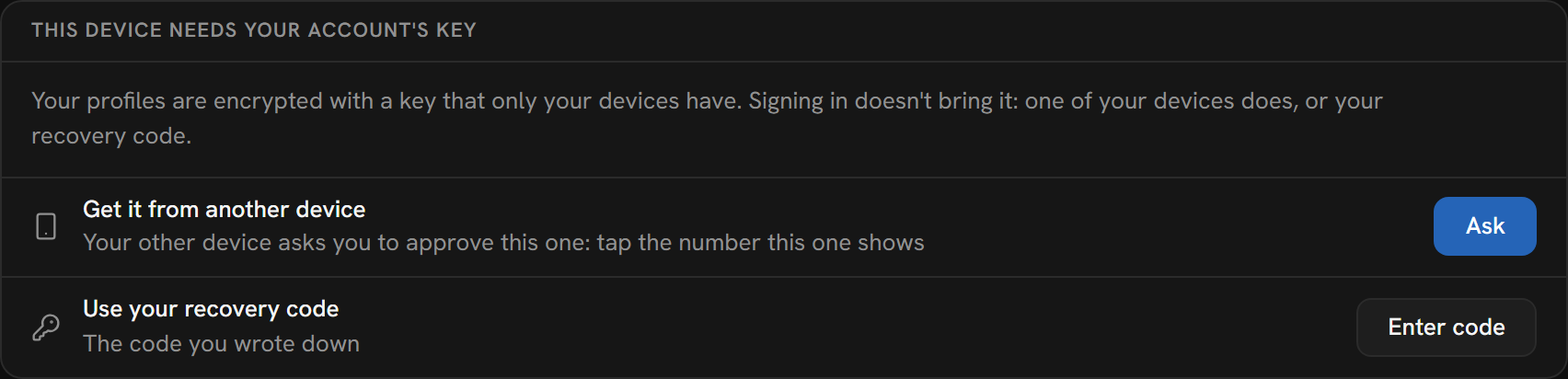
Signing in brings the account, not its key. On a device without the key, Settings → Account reads "This device needs your account's key": "Your profiles are encrypted with a key that only your devices have. Signing in doesn't bring it: one of your devices does, or your recovery code."
| Row | What to do |
|---|---|
| Get it from another device | Press Ask. There is no code to type: your other devices that hold every profile are told at once, and show "Windows asks to be approved" (or the device's name) over any page. On one of them, as a profile that manages the account, press Approve (Approve a device). This device then shows a two-digit number: on the other device, tap the same number, out of three. |
| Use your recovery code | Press Enter code, type the recovery code and press Use code. Spaces, dashes and capitals do not matter, and Mantle catches most typing mistakes before it asks the service. |
Mantle then says "This device has your account’s key", and the page shows the account's profiles and devices. Until it is approved, the device asking reads "Waiting for your other device…", then "On the other device, tap this number." Stop asking stops. A device signed in with the email asks as one of the account's devices: if signing in could not make it one (the service out of reach), it does so first, and says why if it still cannot.
Join without the email
A device can join the account without its email: a device already signed in approves it, with every profile or only one person's.
- On the new device, open Settings → Account (or the first run's Account step). Beside Join from another device, press Use another device.
- The device shows a QR code, and a code of 16 letters and digits in groups of four.
- Scan the QR code with a phone signed in to the account (its camera opens the link in Mantle), or type the code on another device (Approve a device).
- Once that device has it, the new device shows a two-digit number: "On the other device, tap this number." Once approved, it says "This device is one of your account’s now", or "This device holds only Alex now" on a device approved for one person.
An ask lasts 15 minutes. After that, or if the wrong number was tapped, the device says "It wasn’t approved, or the ask ran out. Ask again." Stop asking stops. If you close the window, the button reads Show the code and opens it again. If the device cannot reach the service, it says "Can’t reach your account’s service. Check the connection: this keeps trying."
Approve a device
A profile that manages the account approves devices, on a device that holds every profile (see Who manages the account).
- Find the ask.
- A device of the account asking for its key shows over any page ("Windows asks to be approved": "Signed in with alex@example.com 2 minutes ago. Approve it only if it’s yours."), and under Devices in Settings → Account, with Approve. It does not show over the player: it shows once you leave it. Not now (Escape, or B on a controller) puts it off until another device asks or Mantle starts again.
- For a device joining without the email: under Devices, press Add a device, type the code it shows and press Next (spaces, dashes and capitals do not matter), or scan its QR code with a phone signed in to the account.
- For a device joining without the email, choose what it holds: Every profile (as it starts) or one of the account’s people alone (Only Alex, say). Name it if you want, in up to 40 characters. Unnamed, it is called by what it is, such as "Windows", "Android" or "Web browser" until it has the account’s key, and then by its own name. One that signed in with the email can be named here too: leave the name empty to let it call itself.
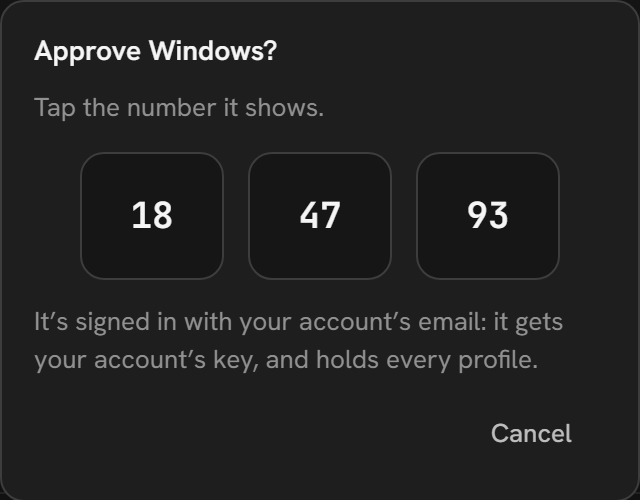
- The dialog, "Approve this device?" (for one of the account's devices, by its name: "Approve Windows?"), reads "It shows a number in a moment…", then "Tap the number it shows." Tap the number the new device shows, out of the three.
Another number approves nothing and ends the ask, so trying each in turn does not work: "That isn’t the number it shows, so it’s not approved. If it’s your device, ask again on it." Anyone can send a link, and only the device in front of you shows its number, so a link alone approves nothing. Every device of the account approving an ask shows the same number for it.
By keyboard or controller, a device asking takes the focus as it shows (on Approve), unless you are typing or a dialog or menu is open: then it takes it once you move on. The arrow keys or the D-pad reach the right number, and Enter or A taps it.
When several devices ask, the newest shows first. A device that asked and was then closed, or had its data cleared, never shows a number. After 12 seconds the dialog says "No number yet. If it was closed, or its data cleared, it isn’t asking any more: dismiss this, and approve it when it asks again." Press Dismiss and it is gone. A code nobody asks with says "No device asks with that code. Check it, or ask again on the new device."
A device for one person
A device approved for one person holds that profile alone: "Only Alex: Alex’s library, lists, progress and friends, and what your household shares (its plugins and their settings). Not your account’s other profiles." The service lets it read all of those and write only that profile. It reads what your household shares and does not change it, so plugins and what they may do are set from a device that holds every profile.
Its Settings → Account shows that profile, its friends and On this device alone, and no devices. It does not approve devices, and does not add the household's other profiles to a shared list or a party. If the profile is not on it yet, press Add here beside it. A profile already on the device can become that person instead: press Sync as Alex beside it (see Profiles). Signed in with the account's email, the device would hold every profile.
Profiles
Each profile on a device syncs with the account, or stays on that device alone. Settings → Account → Profiles lists this device's profiles, marked Synced ("Kept in step with your other devices") while the last sync went through, Waiting to sync (with when it last did, and that this device is not syncing right now, if it is not) while it has not, or This device only ("Not in your account: only here"), then the account's profiles that are not here ("In your account, on your other devices").
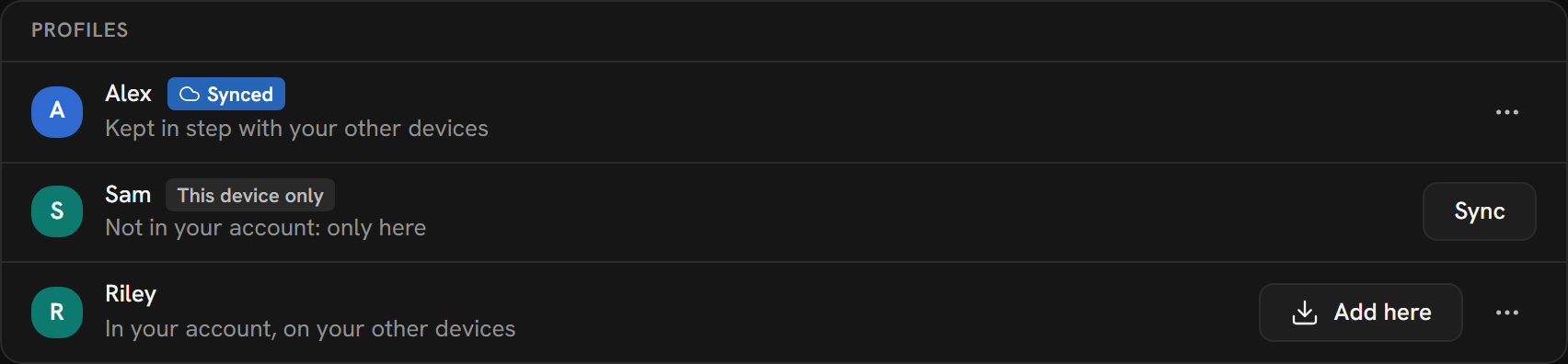
| To | Do this |
|---|---|
| Sync a profile | Press Sync beside it. When the account has profiles that are not here, choose As a new profile. |
| Sync it as one the account has | Press Sync, choose The same person as …, then Sync as one. |
| Add one of the account's profiles here | Press Add here beside it. It comes as a new profile, filled from the account. |
| Stop syncing it here | Press Stop syncing, or, in a profile that manages the account, More (three dots) → Stop syncing here. Then Stop syncing. |
| Take a profile out of the account | More (three dots) → Take out of the account, then Take out. The question says who loses what, as this device knows it: "Jo and Sam are no longer Riley’s friends. Sam stops sharing “Weekend watch” with Riley." Only a profile that manages the account can. |
- Syncing as the same person merges two profiles: "They become one profile in your account. Where both have something (a setting, where you are in a film), Riley’s stays; what only Sam has here is added. Stopping syncing on this device later doesn’t split them again."
- A profile that stops syncing here "stays in your account for your other devices. Here it keeps what it has now, on this device alone." Its shared lists become lists of its own here.
- Taking a profile out deletes what the account keeps of it: "its synced data, friendships and shared lists. Wherever it is, it stays as a profile on that device alone, and a device that holds only Riley is signed out." The last profile that manages the account cannot be taken out.
- A profile the account no longer has (taken out on another device) stays here, as a profile of its own.
In the first run, once the device has the account's key, the profile you name joins the account as a new profile, or That’s me makes it one of the account's people.
What syncs
| What | |
|---|---|
| A synced profile's | Its name, colour and PIN, library, lists and the notes on their titles, favourites, watch progress, watched marks, history, recent searches, how it sorts each list, settings, which plugins it turned on, and its friends. |
| The household's, on every device | The plugins themselves: each is installed on every device, from where it came, with its settings, what it may do, and whether it is private to one profile. The plugins' priority. The keys typed into plugins' settings. A plugin's sign-in to its own account, where its provider lets it be used from more than one place (Trakt, Nuvio, Stremio). Who manages the account. |
| Never synced | Downloads and download folders, Real-Debrid's sign-in (it streams from one place at a time), a private plugin of a profile kept on one device, and when each title came to match a smart list (each device has its own). |
What the household shares is changed only from a device that holds every profile. A device that holds one profile reads it and applies it: Plugins says "Plugins are set from a device that holds every profile", and installing, updating, removing, setting, allowing, ordering or signing in a plugin is switched off there. Turning one on or off for its profile is not. A value it somehow holds that differs from the account's is the account's again at its next sync.
How it behaves
| What happens | |
|---|---|
| When | Mantle syncs a few seconds after something changes, and at once when another device's change is heard. While it hears them, it also looks every five minutes; when it cannot hear them, every 30 seconds. The Sync group, first on the page, says when it last did ("Synced 2 minutes ago"), or since when it has not ("Not syncing since 12:00") and why, in a plain sentence: the service can't be reached, has a problem, or is too slow to finish. Sync now (Try again, when it has failed) syncs at once; Details shows what went wrong (the status and code the service answered, or that it could not be reached) for a report, without the service's address. If only the page's own read of your profiles and devices fails, it says so under the group and says nothing of syncing. Once syncing has failed for two minutes, a Not syncing button in the top bar opens it. A change made offline waits until the service can be reached. |
| Watch progress | Where you are in something you are playing goes up every minute and a half, and when you stop, quit, close Mantle or put it out of sight. If a device freezes or sleeps Mantle with no warning, the last minute and a half may not reach the others until it runs again. |
| Two changes at once | The latest change to each thing wins, wherever it was made. A change counts from when you made it: Mantle notes it within a few seconds while it runs, even with no connection, and not from when it reaches the account. A change made in the last seconds before a device freezes or sleeps with no warning counts from when Mantle runs again, and one made while a sync waits on a poor connection, from when that sync ends. Mantle goes by your account's time, not by each device's clock: every answer from your account says what time it is there, and each device works out how far its clock is off (up to a day) and remembers it for when it has no connection; the clock itself is not changed. So devices whose clocks are minutes or hours apart keep the order you made your changes in. If a device's clock is changed while Mantle runs, Mantle goes by the new time until your account answers again (in a web browser it can tell only a clock set back: one set forward looks like the device sleeping). A device whose clock is changed while Mantle is closed, or drifts while it is offline, can get it wrong until it next reaches your account: with a fast clock its change wins over one you made later on another device, and with a slow clock it loses a change it made later to one made earlier on another. Keep your devices' clocks set from the network. |
| Lists | A list is not one thing: each title in it, its name, its rules and its order are. Two devices that change a list before they sync both keep their changes. Changed on two devices at once, the later order wins, and a title it does not have yet goes last. |
| The order of your lists | Each list has a place of its own among them: lists made on one device and lists moved on another, before they sync, all keep theirs. A list moved on two devices at once goes where the later move put it. A device with a Mantle from before 0.3.2 goes by the whole order: a reorder made there, or a list made, deleted or received there (it then sends the whole order as it has it), wins over the moves made before it. |
| Removed titles | The account keeps that a title was taken out, so it stays out on every device, however long one was away. A title put back later is a later change, and wins. |
| Deleted lists | A list you delete is deleted on every device, and from the account with every title and rule of it, even if another device changed it first. A list made again under the same name is another list. |
| History | Two devices that play the same film on one day before they sync each leave a play. History shows that day's once, the latest. Remove from history takes off all of that day's plays, on every device (Undo puts them back). Times in History are the device's own. |
| Smart lists | When a title came to match a smart list does not sync, so two devices can show its other titles in another order. |
| Keys | Keys typed into a plugin's settings sync, such as TorBox's API key or a Jellyfin password, and so does a key a plugin keeps to itself, such as Real-Debrid's API token. A key goes from your other devices only when you clear it by hand on one. A device that lost its keys (its secrets.dat couldn't be read), or where the plugin isn't installed or didn't load, takes nothing from the others, and gets the keys back from your account. |
| Sign-ins | A sign-in that syncs (Trakt's, Nuvio's, Stremio's) signs every device in once one is. Whichever device renews it, the others have the renewal. Signing out by hand signs every device out. A device signed out without you (the provider refused its sign-in) takes the newer one from your account, and signs no one else out. |
Deletions held back
If a lot of what a profile had synced is missing from a device's saved data when Mantle starts (a copy of its files from before was put back, or a file was lost), deleting those items from your account would delete them on every device. Mantle does not: it holds those deletions back and says so at the top of Settings → Account, and beside Sync now: "A lot of what this device had synced is missing from its saved data, so its deletions are held back". It also says so in a toast when the app starts or a profile is opened, with Review, which opens it. Your account and your other devices keep everything meanwhile, and the choice is kept across restarts until you make it:
- Bring them back puts back on this device what your account has. Nothing is deleted. This is the one to press unless you know you deleted those items.
- Delete them everywhere asks first ("Delete them everywhere?"), then deletes them from your account and every device. It cannot be undone. Choose it if you did delete them, say while Mantle was closed.
It holds when 100 or more of a profile's synced items are missing and they are more than half of what the profile had, or when 250 or more are missing, whatever the share. Fewer than that goes up as ever. The profile's other changes sync as usual. Only what was already missing when Mantle started is held: what you delete while Mantle runs (a list, your history, a profile) goes up at once, however much it is. The one other time it holds is after a restore of Mantle's service, below.
After the service is restored from a backup. Mantle's service may be put back to an earlier time, if its data is ever lost. Your devices then send back what you did since, by themselves. If that time is before you deleted many items of a profile (as many as above, whenever you deleted them), the service has them again. Each device that had the deletion holds it back and asks, so that a restore made on purpose is not undone. The first answer, on any device, goes for all of them:
- Bring them back keeps the items on every device. A list comes back as a new list, with what was done to it on other devices until then.
- Delete them everywhere deletes them again.
One thing can be lost. A list brought back is a new list, and the one it was goes away. Another device may still show that old list, because it has not synced since the list was brought back. If you change the old list on that device in that time (take a title out, add one, write a note, or delete the list), the change is lost: when the device syncs, the old list goes, and the list brought back does not have it. Make the change again on the list brought back. Restore synced data brings a deleted list back the same way.
This covers a profile's own items (its library, lists, marks, progress, history and settings). It does not cover the titles of a list shared with others, which a profile owns or is a member of: if a lost file loses those, they are not held back.
Your account's service has a brake of its own: it refuses deletions from a device that would take most of a profile's or a list's items at once, unless they were made with Mantle running. If it refuses some, they come back on that device, and Settings → Account says so under Sync for a while: "The account refused to delete a large part of your records at once, as it looked like lost data. Nothing was deleted, and they are back. Delete them again if you meant it." Nothing else is needed.
Restore synced data
For 30 days, your account keeps what its devices changed or deleted in each synced profile, in the shared lists its profiles own, and in what the household shares. If something went wrong (titles or lists gone, or a device that synced the wrong things), Settings → Account → Restore synced data undoes what was changed or deleted since an earlier time, on each of the account's devices. What's new since then stays.
- Under Go back to, pick a day (today or one of the 29 before) and a time (on the hour or the half hour) from before it went wrong. It starts at about an hour ago.
- Press Restore… beside the profile. Mantle says what it does ("On each of your account’s devices, what Alex changed or deleted since 13:30 today goes back to how your account had it then: its library, lists and notes, progress and history, settings, and its name, picture and PIN. What’s new since then stays, and so do friendships."), then looks at what your account kept and says what this restore would change, with a few names of each: titles that come back to the library, titles that go from it again (they weren't in it then), lists that come back, and how many other changes are undone. It asks you to type the profile's name. Restore works only once it is typed, and once Mantle has said what would change. If nothing was changed or deleted since then, it says so, and there's nothing to restore.
- The profile's row says "Restoring to 13:30 today…" until it is done. A large profile can take a few minutes; you can go on using Mantle, and another page or tab shows it too. Then it says how many changes were undone. Your other devices get them as they sync. If you left the page meanwhile, a message says so, and the page shows it when you open it again.
- For 10 minutes after it, Undo beside the row puts back what the restore changed, as this device had it just before it, on each of the account's devices. What anyone changed after the restore, on this device or another, stays as it is, and it says how much. A list the restore brought back goes again, unless someone changed it since (added a title or a note to it, say): then it stays as it is, whole. Items this device had lost and was holding back from deleting (see Deletions held back) are put back as your account had them just before the restore, not deleted. On a beta whose account came from the release's (see Channels), one that the beta's service doesn't have as your account had it (one only the release's service has, say) stays as the restore brought it back. Undo is there once the restore has reached your account (not after one that got only part way), while Mantle stays open and signed in to the same account. After that, restoring to a time before the restore is not quite the same: the times are on the hour or the half hour, so it also undoes what anyone changed between that time and the restore, which Undo would have kept.
- What it says it would change is what the restore then does, if you press Restore within 15 minutes: it puts back the versions Mantle looked at, even if your account has since thinned what it keeps, and if another device changed or deleted something since then, that goes back too. After 15 minutes, or once Mantle has restarted, it looks again as it restores. If you change something in between, the restore's own message says what it did.
- What comes back. Everything the profile changed or deleted since then: titles removed from the library come back, a list deleted comes back (as a list made again), a list renamed gets its name back, and a PIN changed since goes back to the one it had. A change is one thing that syncs (a title in the library, its details, the library's order, a list, a mark, a setting) that the restore changes, so 3 titles removed are about 7 changes; what is already as it was then is not counted.
- What stays. What's new since then: a title added, a list made. One that was there at that time, deleted before it, and added again since is deleted again, as it was then. Friendships stay as they are: they're kept by your account's service, not in the profile.
- If nothing was changed or deleted since then, it says so.
- If the changes were undone on this device but couldn't all reach your account yet (the connection dropped, or it took too long), it says so: your other devices get them with the next sync, by themselves. If Mantle is closed while a restore is sending them, it sends the rest when it starts again.
- What changes often is kept once a day: how far you got into a film or an episode (saved every minute and a half while it plays), and anything else changed more than five times within an hour. It is kept as it was before that hour's changes began, and nothing more is kept of it that day. So restoring to a time before you played it that day puts it back as it was then; restoring to a later time puts it back as it was before you next played it on another day, or leaves it as it is.
- Every change counts toward the five, a wrong one and any after it among them. So if an item's changes in an hour come to more than five with the wrong one, or it went wrong later on a day it had been changed more than five times in an hour (adding six titles one after another changes the library's order six times), a restore can't put it back as it was just before it went wrong: it leaves it as it is, or, for a time before that hour, puts it back as it was then.
- A profile that kept over 20,000 changes in 30 days has each item kept once a day, in the same way, until its older changes pass the 30 days. A device stuck in a loop does that, and so can one large change of many items at once and its restore: a profile of 10,000 items changed wrongly at once and then restored has kept 20,000.
- Older versions sealed with an earlier key (from before a key changed) can't be opened by any device, so they don't come back; it says how many.
- If your account's service can't be reached, or has trouble, nothing is restored and it says why. Try again later.
- Restoring again to the same time from this device does no harm: a list it brought back stays one list, not a second copy.
- A shared list that one of your profiles owns has a row of its own, under the profile ("Alex’s list, shared with 2 people"). Restoring it brings back its name, its titles and the notes on them, for everyone who shares it, and each note is still its writer's, which they can change as before. You type the list's name to confirm. Only a list's owner restores it: the account's service lets no one else read a list's history.
- What your household shares has a row of its own, last: its plugins, their settings, keys and sign-ins, their priority, and who manages the account. You type "household" to confirm. A plugin that comes back is installed again on each device; one the household had no record of then stays installed where it is.
- Only a profile that manages the account restores, as it changes a person's profile on each of its devices. A device that holds one profile alone restores that profile and the lists it owns, not what the household shares (it reads that, and doesn't change it).
It covers what your account kept: a profile's own items, a shared list's, and what the household shares.
Plugins on every device
A plugin installed on one device is installed on the others a moment after they sync, from the same place (a plugin that comes with Mantle, a repository, a link or a Stremio addon), with what you allowed it there: no more, even if a newer version asks for more.
- Network. The household's record grants it here as it did there, but only for hosts the plugin's own link asks for. An address you set for a plugin here is not moved to another host by a synced one.
- Versions. One installed from a link or a repository is the version the household has, the newest a device installed or updated. If its link holds another, the plugin is held back: Plugins shows it under Held back from your account ("Your Android device has 1.0.0, and its link holds 2.0.0 now"). It is installed here once a device updates it (there: Plugins, Check for updates, then Update). Or press Install 2.0.0 to install what the link holds now, through the usual permission step, or Not here to go without it on this device: it stays on the others. Plugins that come with Mantle and Stremio addons are not held.
- Updates. A plugin that one device updates reaches the others as an update to take in Plugins, not as a change made to them.
- Turned on or off. Each profile's own choice comes along.
- Failures. One that can't be installed (its link is gone, say) is tried again after a minute, then less and less often, up to every 6 hours.
- Removing. A plugin that comes with Mantle and was removed on a device stays removed there, with its settings, keys and sign-in. A plugin you remove on a device stays removed there, and stays on the others, with its keys. Installed again by hand, it takes the household's settings.
- Permissions. Allow or refuse a plugin's network, credentials or folders on one device, and the others that have it follow, and say so in the log ("network access refused on another device"). Only a refusal takes a permission away from the others: when you turn it off yourself, or leave it off in the permission step. A device that has the same Stremio addon under another link, on another host, or an update waiting for you to allow its new hosts, keeps what you allowed there.
On this device alone
A device can keep sections of the settings as its own, such as a TV's theme and sizes. Settings → Account → On this device alone has a switch for each: Appearance, Playback, Home, Downloads and startup, and Shortcuts and controller. "A section kept here stays as it is on this device, whatever your other devices change." It holds for every profile on the device. Turn its switch off, and the section syncs again, this device's settings in it going to the others.
A plugin is kept here from its setup in Plugins. On a device that holds every profile, the setup has a Sync with your other devices switch. Off, it reads "Kept on this device: not on your other devices, its settings and keys as they are here". On, each of its settings, and a sign-in that syncs, has a cloud button beside it: press it to keep that one on this device ("API key for TorBox: kept on this device"), such as a server's address on a device in another network. The others keep their own of it, and the plugin's other settings sync as before.
Devices
On a device that holds every profile, Settings → Account → Devices lists the account’s devices. Each is called by its own name (a computer’s, a phone’s model, or "Firefox on Windows" in a browser, sealed with the account’s key like its other records) until someone names it, says what it holds ("Every profile", or "Only Alex") and when it was last seen. This one is marked This device. An account has up to 100 devices.
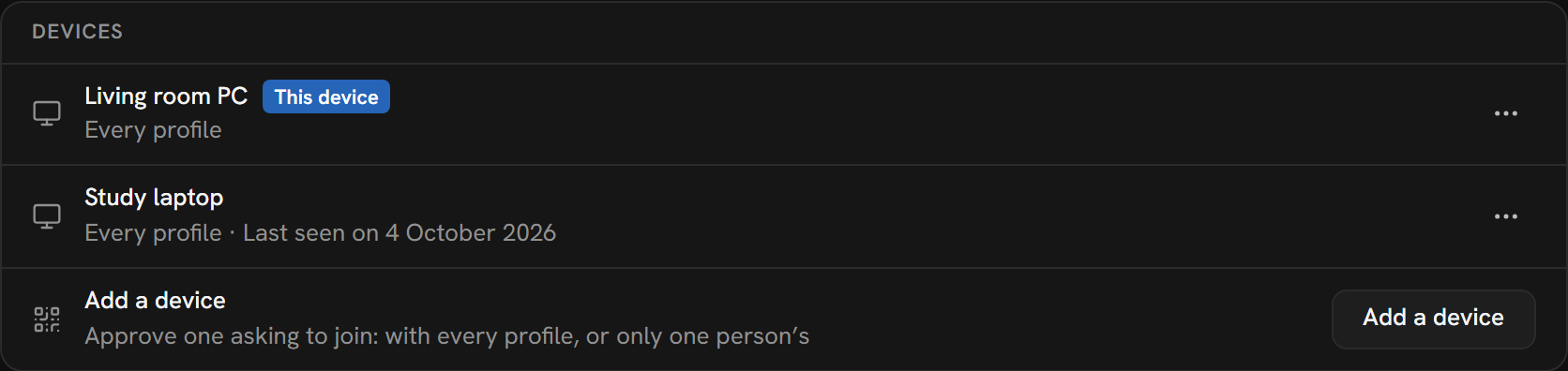
| To | Do this |
|---|---|
| Rename a device | More (three dots) → Rename. Type a name and press Save. A profile that manages the account renames any device; any profile renames this one. |
| Take a device out | More (three dots) → Take out of the account, then Take out. Only a profile that manages the account can. This device is not taken out: sign it out instead. |
| Add a device | Press Add a device (see Approve a device). |
A device taken out "reaches nothing of your account from now on, and is signed out. Its profiles stay on it as they are." One that joined without the email leaves the account altogether: to come back, it joins again. On the device taken out, Settings → Account reads "This device was signed out of your account": "A device that manages your account took it out, or its sign-in ended. Its profiles are here as they were. Sign in again, or join from another device." A deleted account shows the same.
A device that signed in with the email and never got the account's key (it was closed, or its data cleared, before another device approved it) holds nothing, and is listed as "Waiting for your account’s key", not as one that holds every profile. One that has not been seen, asked for the key or renewed its sign-in for a day is taken out as if by a manager, and signed out: signing in and asking again brings it back. This starts two weeks after the account service takes the change. A device approved without the email is never taken out this way.
Copies of the data folder
A data folder restored from a backup or cloned, on the same computer or another, and run beside the original, never confuses the account: each run of Mantle stamps what it syncs with an id made for that run, so neither copy loops and the records keep their ids.
But a copy holds the same sign-in (secrets.dat, encrypted under the key beside it), so at the account it is the same device as the original. Use a folder on one computer at a time: two copies running together share one sign-in, which the service may end for one of them (it then signs in again). In the Android app the sign-in is sealed under a key the phone's Keystore holds, so it cannot be read from a copy of the app's files.
Who manages the account
"They add and take out devices, take profiles out of the account, and can delete it. One always does." The first profile to join the account manages it. Settings → Account → Who manages the account lists the account's people. A profile that manages the account turns the switch beside each on or off. The last one's switch cannot be turned off: it reads "Manages the account: the only one who does".
Managing is a rule of the app, not a lock: any device that holds every profile could do what a manager does, as the service cannot tell who manages (that is sealed with what the household shares). A device that holds one profile cannot: it does not write what the household shares, so it cannot install a plugin for the household's other devices, nor name who manages the account. Approve Every profile only for a device you trust.
Sign out, or delete the account
To sign out of a device, press Sign out ("Of this device") in the Account group, then Sign out. The device leaves the account's list of devices.
| Device | What happens |
|---|---|
| Signed in with the email | "Profiles stay on this device as they are, and sync again when you sign back in. This device forgets your account’s key." Signed back in, it needs the key again, from another device or the recovery code. |
| Joined without the email | "Profiles stay on this device as they are. It has no email of its own to sign back in with: to sync again, join from another device." |
A profile that manages the account, on a device that holds every profile, can delete it: press Delete beside Delete the account. A dialog says that it deletes the account for every device and for everyone in the household, that it is deleted 7 days from then, and what goes, counted: the profiles with everything each synced, the devices that are signed out, the friendships, the shared lists (friends who share lists with you lose them) and the watch parties going on. A device that has not got some profile of the account has not got what that one keeps, so those counts read "at least". Profiles stay on each device as they are, on that device alone. The Delete the account button stays off until you type the account’s email (or, for an account with no email on this device, the word “delete”), and Mantle checks what you typed again before it asks.
For those 7 days the account waits. Every device signed in to it says so first in Settings → Account, under Deleting the account, with when: "Your account will be deleted on 20 November 2026 at 14:05". Nothing syncs meanwhile: what you change on a device stays on it, and the account accepts nothing new from its own devices, so no invites, shared lists or parties are made (a device that was behind still gets what the account has). To keep the account, a profile that manages it, on a device that holds every profile, presses Keep the account: nothing is deleted, and what changed meanwhile syncs. Signing in to the account does not keep it. When the time comes, the service deletes everything the account keeps, within a few minutes (its cleanup runs every minute, whether or not anyone uses the service), and every device is signed out; that can’t be undone, and from then Keep the account says it’s too late.
An older Mantle that is asked to delete the account says to update Mantle first, and nothing is deleted.
Channels
A beta is a newer build of Mantle on the same account. Releases and betas reach the same account service, Mantle's own, and open the same data folder, so you go from a release to a beta and back signed in as you were, with the same profiles, friends, shared lists and watch parties.
- What a beta changes syncs as a release's does. It reaches your account and your other devices, on a release or a beta. If a beta gets something wrong, Restore synced data puts a profile back to an earlier time, and deletions that look like lost data are held back until you choose.
- Watch parties. A release joins a beta's party by its link or its code, and a beta a release's.
- The web build. The beta at app.mantlevid.com/beta/ keeps its own data apart from the release's, as a browser keeps each site's: sign in to the same account there, and your synced profiles come along.
- Older versions. Update every device before you use a beta with the account.
A build made from the source between releases (dev) reaches an account service on the computer that builds it, and its accounts are not Mantle's. See Releasing and hosting.
A data folder belongs to the service it signed in to. Open one that a dev build signed in with in a release, and Settings → Account reads "Synced with another Mantle": "This Mantle's profiles sync with Mantle dev's account service, which this version of Mantle doesn't use, so it leaves them as they are. Open them with Mantle dev, or leave that account here." To use this Mantle's account with them instead, press Leave beside Leave that account here, then Leave: this device signs out of that account, and its profiles stay on it as they are, its own, to sync once you sign in here. The account itself, and its other devices, stay as they are.
What the service sees
The service keeps what it needs to sync, sealed on your devices with keys they make. It cannot read what a profile keeps, nor its name and picture, a shared list's titles and notes, the devices' names, or anything played or said in a party. The account's key is there only sealed: with your recovery code, which is how the code brings it back, and to a device being approved, for that device alone to open. The service lets each device reach what it holds and nothing else.
What it does see:
| It sees | Detail |
|---|---|
| The account's email | |
| Profiles and devices | Which the account has, what kind of device each is that signed in with the email (Android, Windows, web and so on), which profile a device holds alone, when each was added, and when a device was last seen. |
| How much | How many things each profile and shared list keeps, how large each is, in what order they were written, and when the account last changed. |
| Friends | Which profiles are friends, and whom a profile blocked. |
| Earlier versions | For 30 days, the sealed copies of what a profile or a shared list replaced or deleted, with when each was written and replaced. They are sealed like the rest: the service cannot read them either. |
| Shared lists | Which profiles share each list, what each can do, and which of them wrote each thing kept in it. |
| The key | Whether each device is known to hold the account's key (see the recovery code), and a fingerprint of a secret that only the key gives, which cannot be turned back into the key. |
| Parties | Whom a party's host invited by name, and when. In a party, each device speaks with a key it makes for that party, so the service does not learn which account it is. |
A service passing off a key of its own for the device asking would show another number: each device commits to its part of the number before it sees the other's, so the service passing them on cannot choose it. On each device, Mantle keeps the account's key with the keys and sign-ins plugins keep (in the desktop app, secrets.dat; see Your data and the security notes).
Mantle's privacy notice covers this and what else Mantle and its website do with your data.
This page is made from docs/guide/account.md in the repository.