
Getting started
This page takes you from a download to a working Mantle: pick a build, install it, and follow the first run. It also covers profiles and a few tips. Read it first. The other guides assume you have finished the first run.
Pick a build
| Build | Runs on | What it is |
|---|---|---|
| Desktop app | Windows | One program, mantle.exe, with its own window. |
| Web build | A current browser, on a computer or a phone | A site of static files. All of Mantle runs in the browser: no server, no access code. |
| Android app | Android 8 and newer | Mantle as a small server, packaged as an app that serves only that phone. |
All three are the same Mantle: the same core and the same screens. See Web and phone for the last two, and Architecture for how they share code.
Mantle has no installer. Each release has the three builds, or you build them from the repository: Building and testing lists every build command.
Install the desktop app
- Download
mantle-<version>-windows-x64.zipfrom the latest release and unzip it. Or build it withgo run ./tools/mk package: the program isout/mantle/mantle.exe. - Copy
mantle.exeto any folder, on any drive. - Run it. The program is not code-signed, so the first time Windows asks before it runs it (SmartScreen): choose More info, then Run anyway.
The desktop app needs the WebView2 runtime. It comes with Windows 11 and current versions of Windows 10. Mantle keeps what it holds in a mantle-data folder next to the program: see Your data.
Update
Mantle looks for a newer version as it starts and once a day after, and when you ask: Settings → Data and storage → About → Check now. Once a newer one is out, that button is See what's new.
- When a version is out, Mantle shows what changed in every release since yours, newest first. It waits while you watch something or type.
- Press Update and restart, or Later or Skip this version.
- Mantle downloads the new
mantle.exe, checks it is the release's (its SHA-256 and size, which the releases feed gives and Mantle's own key has signed), and restarts into it. If the new one cannot take its place, the version you had starts again.
The version before stays beside it as mantle-previous.exe, and your data stays where it is. After an update, Mantle shows once what changed.
Looking sends two requests to the releases feed (https://app.mantlevid.com/releases.json, and its signature beside it) and nothing else. In the same place you can turn looking off, have pre-releases (versions still being tried) offered too, or read another feed. The default feed is signed, and Mantle offers nothing from it if its signature is not Mantle's (Settings shows why). A feed you type in is not signed, so Settings labels it, Mantle asks you to confirm before installing from it, and its updates are as trustworthy as whoever runs it.
The first run
A new install walks through six steps. Each step is saved as you go, so if you close Mantle, it opens where you left off. After the first step, a bar at the top lists the steps (Account, Profile, Bring a setup, Plugins and Finish), with the current one marked. On a phone it reads "1 of 5", "2 of 5" and so on. Back returns to the step before, and you can press a step you have done to go back to it.
You can change everything later in Settings and Plugins. Settings → Data and storage → Share your setup → Set up again repeats the plugin steps.
1. Welcome
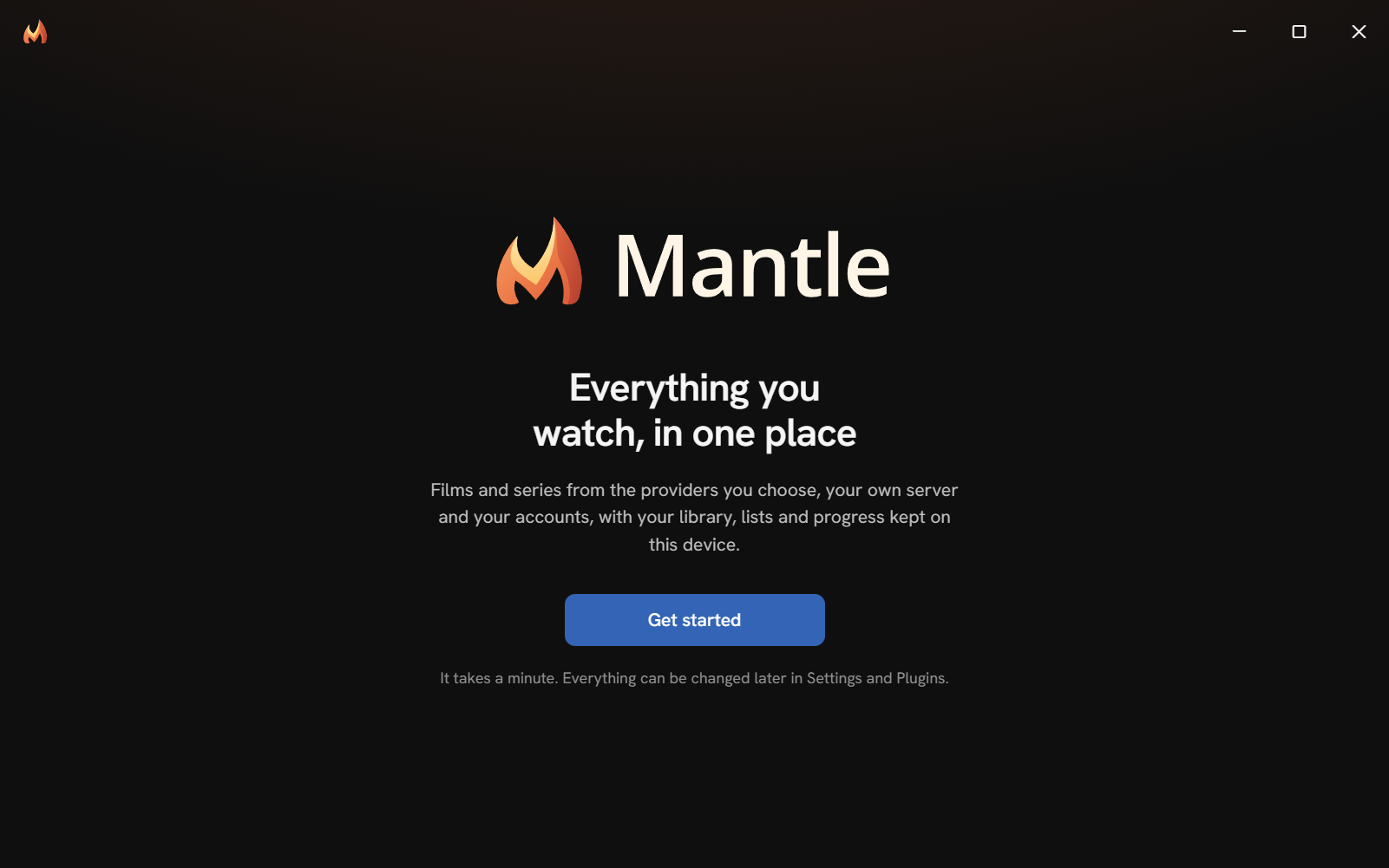
Press Get started.
2. Account
The step asks "Keep your devices in step?". An account is optional: Mantle works on this device without one. With one, your household's profiles, lists, watch progress, plugins and settings stay the same on every device. See Mantle Together. It offers three choices:
- Continue with email ("Sign in or create an account"): Mantle emails you a code. An email it doesn't know yet makes your household's account; one it knows signs in to it. It's the same button either way.
- Use another device ("Join from another device"): a device already signed in approves this one. No email is needed here.
- Skip ("Use Mantle without an account"): everything stays on this device. You can add an account any time, in Settings → Account.
On any device but the account's first, signing in leads to "One more step": this device needs the account's key, from another of its devices (Ask: tap the number this device shows on the other one) or from the recovery code (Enter code). Later goes on without it. With the key, the step asks "Who’s watching here?": That’s me beside one of the account's people brings their library, lists, progress and settings here, and Someone new names a new profile next. The account's first device shows its recovery code here first: write it down.
A device that joins an account your other devices set up already gets its plugins and settings from the account. Bring a setup and Plugins are skipped, and so is Profile once this device's profile is one of the account's people: on to Finish. Mantle Together explains each part.
3. Profile
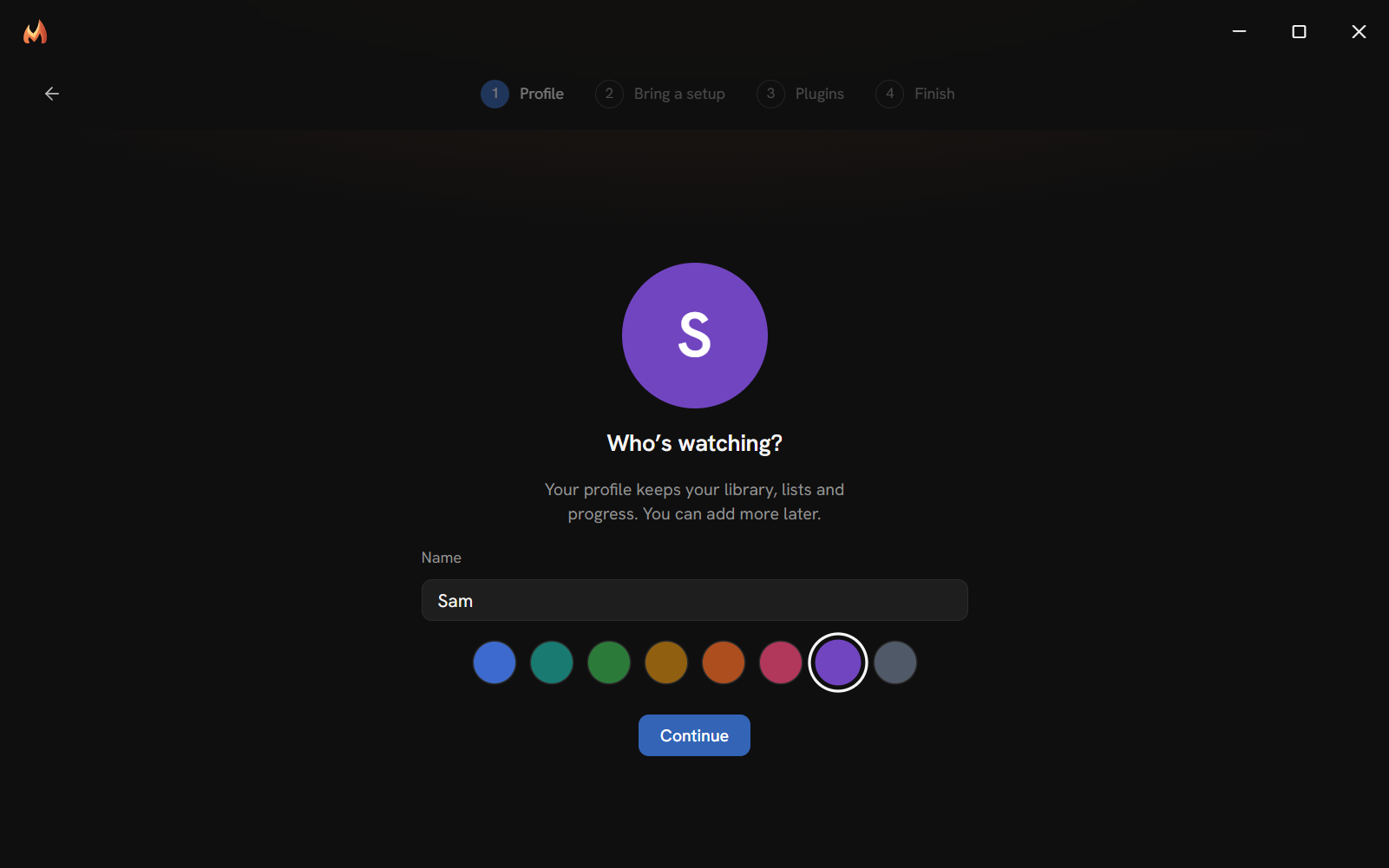
Give the first profile a name and pick a colour: Blue, Teal, Green, Amber, Orange, Rose, Violet or Slate. The profile keeps your library, lists and progress. Press Continue.
4. Bring a setup
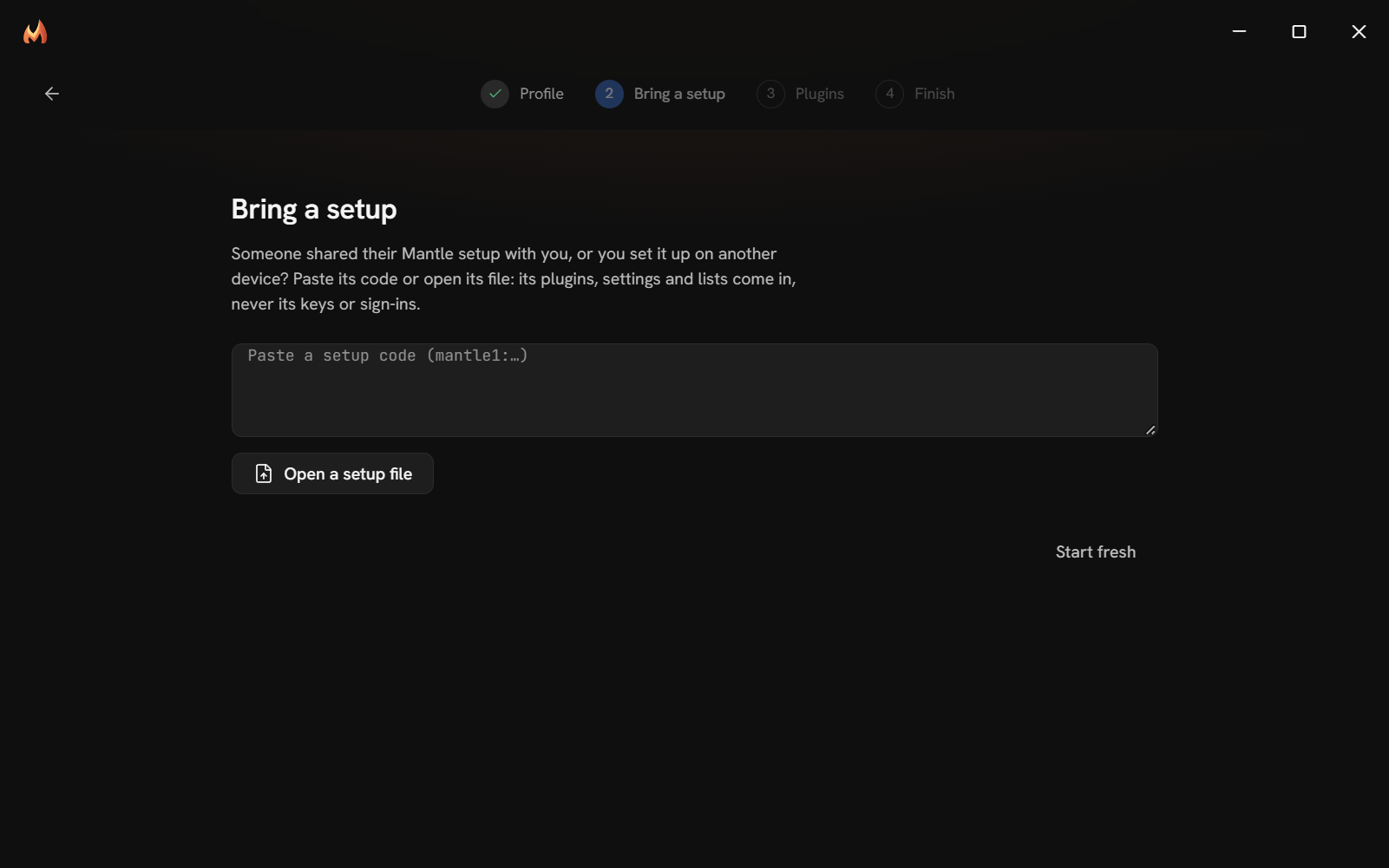
If someone shared their setup with you, or you set Mantle up on another device, paste its code or open its file. Then pick what to bring in, item by item: plugins, groups of settings and lists. Keys and sign-ins never come in. When the plugins it uses that you do not have are listed, install the ones you want. The button at the bottom reads Continue, or Continue without them if some are left. See Sharing a setup.
If you have nothing to bring in, press Start fresh.
5. Plugins
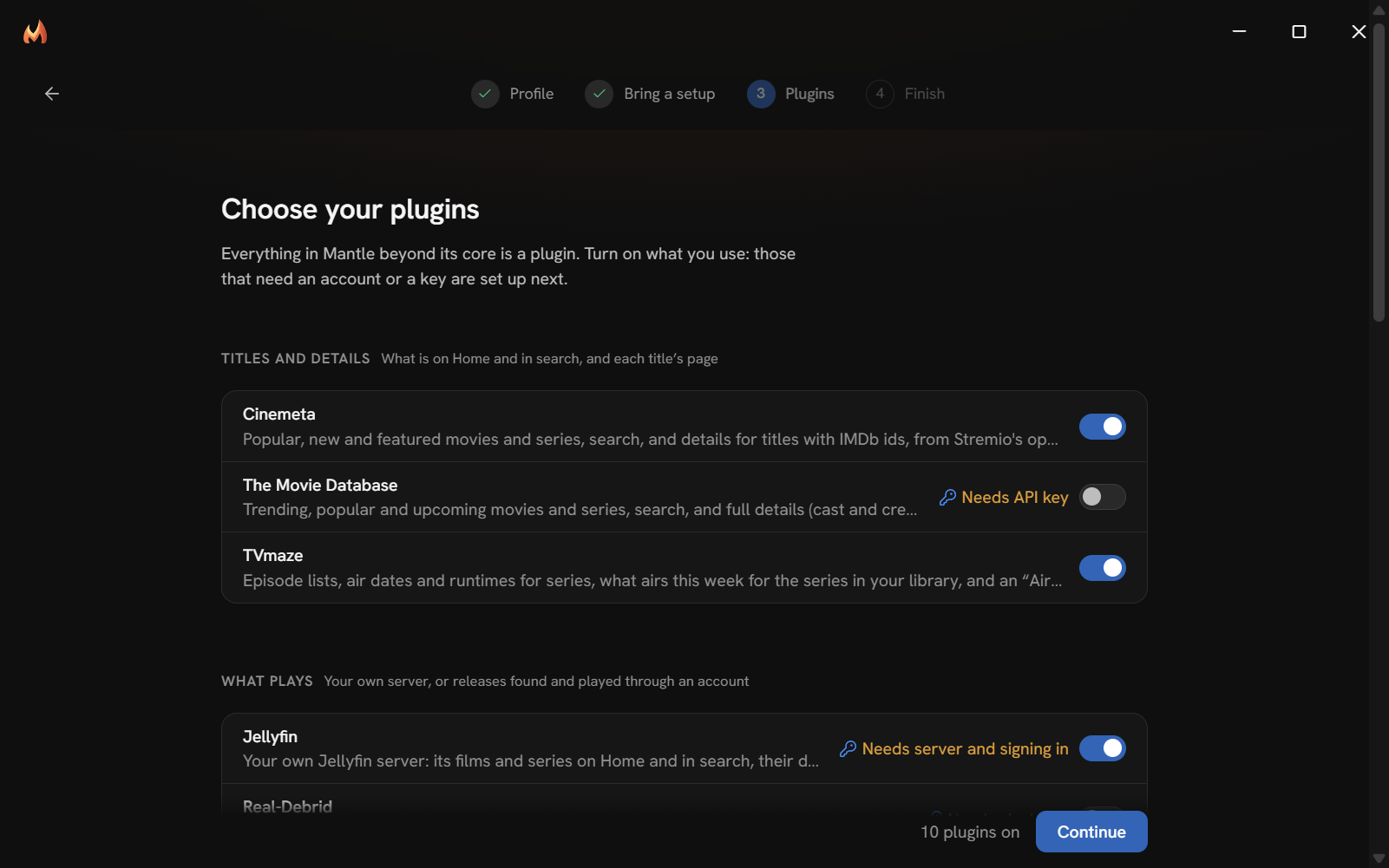
Everything in Mantle beyond its core is a plugin. This step lists them in groups, with a switch on each:
| Group | What it holds |
|---|---|
| Titles and details | Plugins that supply what is on Home and in search, and each title's page. |
| What plays | Your own server, and releases found and played through an account. |
| Your history | Plugins that bring in what you watched in another app. |
| While you watch | Subtitles, and skipping intros, recaps and credits. |
| Extras | More on title pages and around the app. |
| Others | Plugins of any kind that no other group holds. |
| From a link | A Stremio addon, or a plugin someone made. |
A plugin that cannot work without something from you says what it needs, for example "Needs server and signing in". Turn on what you use. The footer counts how many plugins are on. Press Continue.
Plugins explains plugins in full.
6. Finish
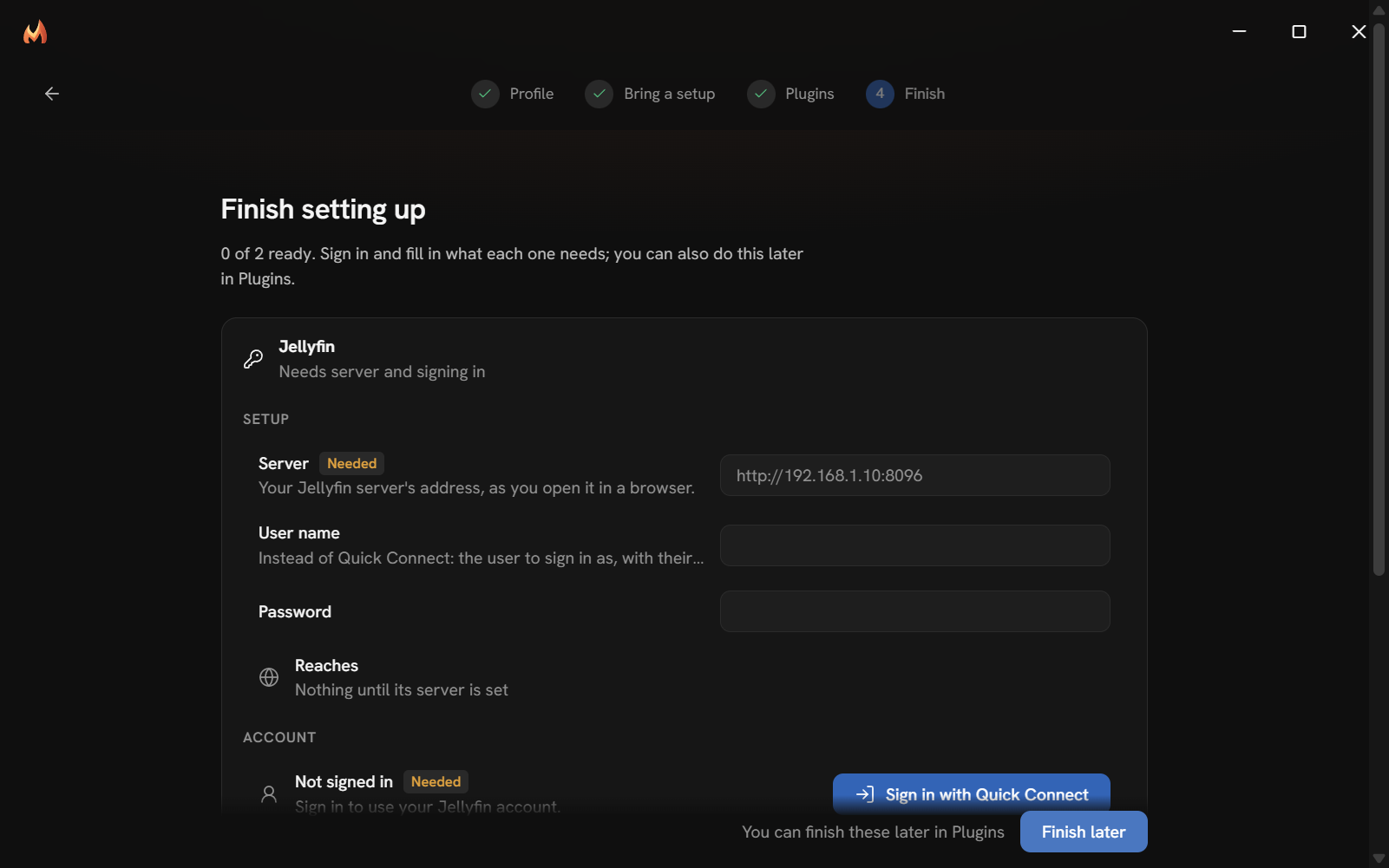
This step shows each plugin you turned on that still needs something: a server address, an API key or a sign-in. Its setup is open in place. Fill it in, or sign in with the code the plugin shows. A plugin you finish is ticked off and marked Ready. The step checks again every two seconds, so a sign-in you finish in your browser ticks itself off.
If everything is ready, the heading reads "All set" and the button reads Start watching. If something is left, the heading reads "Finish setting up" and the button reads Finish later. You can finish it later on the Plugins page.
Profiles
Each profile has its own library, lists, favourites, watch progress, history, search history and settings. People sharing a computer each get a profile, so one person's progress never changes another's.
| To | Do this |
|---|---|
| Switch profile | Press the profile button at the top of the rail. On a phone, open More and press your name. Then pick a profile from "Who’s watching?". |
| Add a profile | On "Who’s watching?", press Add profile. Or open Settings → Profiles and press Add profile. |
| Rename or recolour a profile | On "Who’s watching?", press Manage profiles, then pick the profile. Or open Settings → Profiles and press the pencil beside it. |
| Delete a profile | Open the profile as above, then press Delete profile. This button appears only when there is more than one profile. |
Deleting a profile removes its library, lists, progress, history, settings and private plugins, and its private download folders with the downloads in them.
- Nothing finished is deleted from the disk: Mantle only stops listing the files of a removed folder.
- What it downloaded to the folders everyone uses stays in the list. A finished download passes to the profile that is current after the deletion (if you delete the profile you are using, that is the first profile in the list), and one that was not finished is cancelled.
- Mantle keeps its data as it was just before, as
mantle.json.before-removing-a-profile-<profile>(the last five). Restoring one puts back every profile, not only the one deleted: see Your data.
Some things belong to the device and are shared by all profiles:
- Plugins, with their settings, sign-ins and priority. Each profile turns a plugin on or off for itself (see Turn a plugin on or off). A plugin you make private is seen by one profile only (Plugins, in the plugin's details, under Scope). Signed in to a Mantle account, your household's devices keep plugins in step too (see What syncs).
- Downloads and download folders. A download folder can be made private to one profile.
Lock a profile with a PIN
A PIN keeps a profile to itself when a household shares a computer. It is 4 to 8 digits.
- Open the profile to edit it (as above).
- Under PIN, press Lock with a PIN.
- Type the PIN and press OK, then type it again and press OK. It is set at once: you do not need to press Save.
To change or remove it, open the profile and press Change PIN or Remove PIN.
A locked profile has a small lock on its picture in "Who’s watching?", and a PIN badge in Settings → Profiles. It asks for its PIN:
- When Mantle opens on it. The whole window asks first. Switch profile there goes to "Who’s watching?" to pick another.
- When you switch to it. A small window asks (a sheet on a phone).
- When you edit or delete it, or change or remove its PIN.
The profile you are in is not asked again until Mantle is closed and opened. You type a PIN on the number pad shown: with the mouse or a finger, the keyboard, or a controller (the D-pad moves between the keys and A presses one). After five wrong PINs in a row, each try waits 30 seconds, then twice as long after each wrong one, up to five minutes. A right PIN starts the count again. The count is not saved.
A PIN is not encryption. Mantle keeps only a salted hash of it in mantle.json, and a shared setup or an export never holds it. But anyone who can open mantle-data can read every profile in it, and can take a PIN out of mantle.json while Mantle is closed. To keep people out of your files, lock the computer itself.
Tips
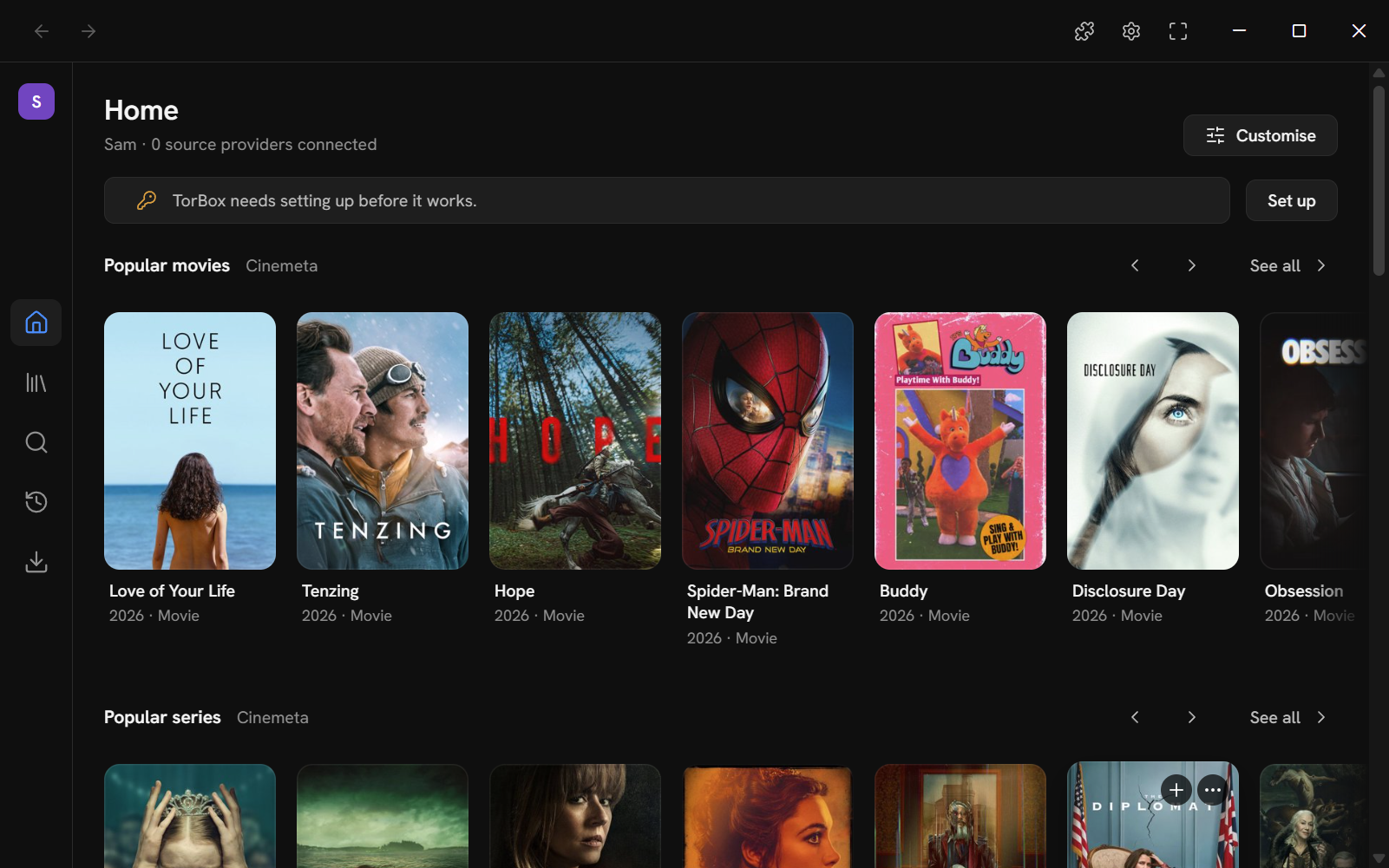
Home and banners
Home opens with Continue watching first, then Release Radar: the shows in your library with an episode out in the past week or coming in the next. The shelves your plugins provide come after. Customise opens Settings → General, where you reorder and hide shelves and choose where Mantle opens.
If a plugin you turned on still needs setup, Home shows a banner such as "Real-Debrid needs setting up before it works." with a Set up button, and leaves that plugin's shelves out until it is ready.
Finding your way
On a wide window, the rail on the left holds the profile button at the top, then Home, Library, Search, History and Downloads, then any section a plugin adds. The top bar has Back and Forward (they also undo switching a Settings section or a Library list), and the Plugins (puzzle piece) and Settings (gear) buttons. On a narrow window, such as a phone, the rail becomes a tab bar: see Web and phone.
Put a setting back
A setting you have changed shows a small reset button beside its control. Its tooltip says what the setting starts as, such as "Default: Home". Press it, or press Left from the control by keyboard or controller, then Enter or A.
A section of Settings with changed settings (General, Playback, Appearance or Shortcuts) has a button at its end, such as Reset Playback to defaults. It asks first, then offers Undo. Download folders, storage, profiles, plugins and sharing have no reset.
Seasons and Specials
A series' page lists its numbered seasons, then its Specials (season 0: extras, shorts and the like) when its providers have any. Jellyfin, Stremio addons (Cinemeta too), The Movie Database and TVmaze all give them.
Specials stay out of what goes by order: Play and Up next never go into them, and Mark all watched and a whole-series download leave them out. A special plays, and downloads (Download specials), from its own row.
Searching
The Library's search box and Search are forgiving:
- Case, accents and punctuation do not matter: "spiderman" finds Spider-Man, and "amelie" finds Amélie.
- Words can come in any order, or be just their start: "empire back".
- A word of five letters or more may have a typo, and one of nine or more two: "empier", "godfahter". A shorter word, or a number, must be as it is.
- A title is also found by what else it goes by, as your metadata plugin describes it: its other names, the collection it is part of, and its keywords. Once The Movie Database has described it, "star wars" finds The Empire Strikes Back. Jellyfin gives a title's original name and its tags, TVmaze a series' other names, and Kitsu's Stremio addon an anime's aliases.
The closest matches come first: the name itself, its start, its words, somewhere in it, its other names and collection, its keywords, and last the near misses. In the Library, your chosen sort orders the titles within each of these.
The Library's search and filters are one for the whole Library: typed once, they stay as you switch lists, until you clear them, and each profile has its own on this device. Each list (All titles too) keeps its own sort, which syncs with the profile's other devices; a list you share is sorted as you chose, whatever the others did.
Playback speed
The speed button in the player's controls sets how fast a film plays, from 0.25× to 5× in quarter steps. Settings → Playback → Speed sets what the player starts at, and the profile keeps the speed it was last set to.
The picture plays at the speed you pick, whatever the device: Mantle does not measure it or hold the speed below what you picked. If the device or the network cannot keep up with a speed, the picture buffers or drops frames, as in any player, and you can pick a lower one. Nothing is remembered about it: a speed is always yours to pick.
- The speed button shows the speed it plays at, and the speed menu offers 0.25× to 5×. The speed you picked stays your profile's.
- A picture that sticks while the sound plays on is brought back to it (a short seek, not more than once in twenty seconds).
- In a watch party, a guest follows the speed the host plays at.
Next steps
- Plugins: set up, install, order and permissions.
- Jellyfin: play from your own server.
- Real-Debrid and TorBox: play releases through a debrid account.
- Sharing a setup: move your setup to another device.
- Your data: back up, restore and move Mantle.
- Web and phone: use Mantle in a browser or on a phone.
This page is made from docs/guide/getting-started.md in the repository.