
Plugins
This page is for managing plugins: turning them on, setting them up, installing more and controlling what they may reach. Everything in Mantle beyond its core is a plugin: where titles come from, where streams come from, which accounts it signs in to. To write a plugin, see the plugin author guide.
What a plugin is
A plugin is a small Lua program. It runs in a sandbox. It cannot read your files or run programs. It can reach the network only at the hosts it declares, and only if you allow it. It can keep secrets only if you allow that too.
Each plugin has a kind, shown as a badge on its row:
| Kind | What it does | Examples that come with Mantle |
|---|---|---|
| Metadata | Supplies lists of titles, search and each title's details. | Cinemeta, TVmaze, The Movie Database |
| Media server | Plays from your own server. | Jellyfin |
| Source finder | Finds releases of a title. | Torznab indexers |
| Source resolver | Turns a release into a stream, through your account. | Real-Debrid, TorBox |
| Stremio addon | An addon installed from its link. | |
| Importer | Brings in your library from another app. | Trakt, Stremio account, Nuvio |
| Subtitles | Finds subtitles online. | OpenSubtitles |
| Skip times | Says where intros, recaps, credits and previews are. | AniSkip, IntroDB, SkipDB, TheIntroDB |
| Player control, UI extension | Add buttons to the player or to pages. |
A plugin can do more than its kind says. TVmaze, for one, also says what airs: it adds a Calendar section to the rail, with the episodes airing this week of the series in your library, and an Airing today shelf to Home.
"Mantle core" is also a plugin. It supplies the rail, the library and lists, and the player. It is always on, always first and cannot be removed.
Mantle comes with its plugins already installed. Most start off: all of those for services, such as the subtitle, skip times and source plugins. Skip intro, which adds the Skip intro and Skip credits buttons to the player, starts on. The first run asks which of the plugins that start off to turn on (Choose your plugins), and sets up those that need an account or a key.
Open the Plugins page
On a wide window, press the Plugins button (a puzzle piece) in the top bar. On a phone, open More and press Plugins.
The page has three tabs:
| Tab | What it shows |
|---|---|
| Installed | Your plugins, in priority order. Turn them on and off, set them up, and install more from a link. |
| Catalog | What the repositories offer. |
| Inspector | The hooks plugins add to, and the plugin log. |
Changes apply at once.
Turn a plugin on or off
Use the switch at the end of the plugin's row ("Enable Jellyfin"). A plugin you turn off stops contributing at once: its shelves, search results and sources go. Its settings and sign-in are kept.
The switch is the profile's own. Turning a plugin on or off changes it for the profile you are in, and the other profiles keep theirs. A profile that has not chosen has a plugin as it starts:
| Plugin | Starts |
|---|---|
| One that comes with Mantle | As the first run set it, or as it comes if the first run did not. |
| One installed from a link or a repository | On for the profile that installed it, off for the others until they turn it on. Installed in the first run, it is on for every profile. |
The first run sets up the device, so what you turn on or install in it (or in Set up again) is also what a profile you add later starts with.
Set a plugin up
Some plugins cannot work until you give them something. Mantle calls these required items. They are a setting the plugin marks as needed (a server address, an API key) and, for some plugins, a sign-in.
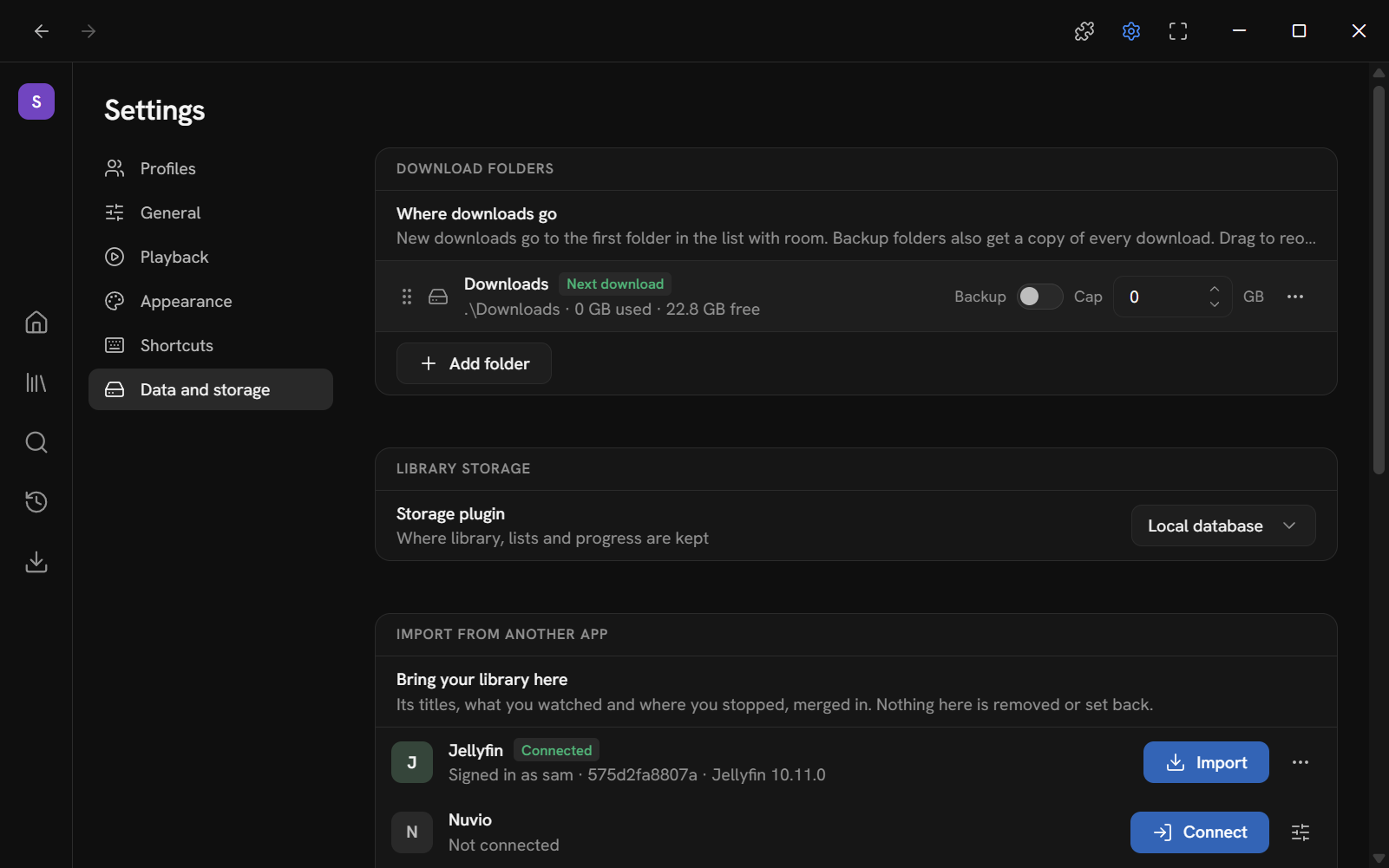
Mantle tells you in four places:
- On the Plugins page, the plugin's row has a Needs setup badge and says what it needs, for example "Needs server and signing in" or "Needs torznab feed and API key". It names the required settings in their order, then signing in if the plugin needs an account.
- A banner at the top of the page reads "Jellyfin needs setting up before it works." Its Set up button opens the first plugin that needs it.
- Inside the plugin's details, each missing item is marked Needed.
- On Home, the same banner appears, and the plugin's shelves are left out until it is ready.
To set a plugin up:
- Open its row. Its details show a Setup section.
- Fill in the fields. Each field says what it is for.
- Press Save. Press Revert to drop what you typed. A toggle or a choice saves as soon as you change it.
- If the plugin has an account, sign in (see below).
Fields come in these types:
| Type | How it looks |
|---|---|
| Text, URL | A text box. |
| URLs | A box with one address per line. |
| Secret | A password box. Once saved, it shows Set and is never shown again. Type a new value to replace it. The x beside it forgets it. |
| Toggle, choice | A switch, or a list to pick from. |
The Reaches row at the end of the setup lists the hosts the plugin may contact now. For a plugin that works with your own server it reads "Nothing until its server is set" until you fill in the address.
If the plugin has a health check, a Health section appears. Press Check to run it. It reports how the plugin is doing: whether its service answers, whether you are signed in. A plugin you have refused the network says so instead, in one line: "Network access is off: turn on Network under the plugin's permissions."
Sign in by code
Most accounts sign in with a code, as a TV app does. Mantle shows a code. You enter it on the provider's site.
- Turn the plugin on. The sign-in button does not work while it is off ("Turn Real-Debrid on to sign in.").
- Open the plugin's row. Under Account the row reads "Not signed in". Press the sign-in button. Its label comes from the plugin, for example Sign in with Real-Debrid.
- Mantle shows "Enter this code at" and the provider's address, with the code in large type.
- Press the Open … button (for example Open real-debrid.com) to go to that page. Or press Copy code and go there yourself.
- Enter the code on the provider's site and confirm.
- Mantle checks until the provider accepts it. The row then reads "Signed in as" and your account name, with your plan and when it ends.
If the code is not entered in time, Mantle says "The code expired before it was entered. Sign in again." Cancel stops a sign-in. Sign out forgets the account.
Jellyfin's Quick Connect works the same way. See Jellyfin.
Install plugins
From the catalog
The Catalog tab lists plugins from repositories. Pick a repository, or search by name or description. Press Install beside a plugin.
Before it installs, Mantle shows what the plugin asks for. Allow or refuse each item, then press Install (see Permissions below).
A repository is a place that holds plugins. Mantle ships one, "Mantle official", which holds the plugins that come with it. You can add others:
- In the Catalog, press Add repository.
- Enter one of these:
- A git repository:
owner/repofor GitHub, or a link to one on GitHub, GitLab, or any Forgejo or Gitea host (Codeberg, CodeFloe, or one of your own). A link to a folder in one (…/tree/main/pluginson GitHub,…/src/branch/main/pluginson Forgejo or Gitea) reads just that folder. - A link to a zip of plugins.
- A collection of Stremio addons (
addons.json, or an addon that lists addons).
- A git repository:
- Mantle reads it before adding it. It says so if there are no plugins there.
Press Repositories to manage them. Each repository has a switch to use it or not. Repositories you add are marked Not reviewed, because anyone can publish plugins. Their menu has Read again, Copy link and Remove repository. Removing a repository does not remove the plugins you installed from it.
If you removed a plugin that came with Mantle, you can install it again from the Catalog.
From a link
On the Installed tab, the From a link row takes a link. Press Install to read it. The first run's Plugins step has the same row. A link can be:
| Link | What you get |
|---|---|
A git repository (owner/repo for GitHub, or a link) with one plugin |
That plugin. |
| A zip of one plugin | That plugin. |
A .lua file |
That plugin. |
A Stremio addon's manifest (https://…/manifest.json, or stremio://…) |
That addon, as a plugin. |
Mantle reads the link first and shows what the plugin asks for. A link that holds several plugins is a repository. Mantle offers to add it as one, so you can install from the Catalog.
A plugin from a link that is not one of your repositories shows this warning: "This did not come from a repository you added. Only install it if you trust where it came from."
Plugins you install are kept in mantle-data/plugins. They are installed on, last in priority, and shared by all profiles.
Stremio addons
A Stremio addon becomes a plugin of its own, with the kind Stremio addon. Mantle uses what the addon's manifest says it offers: its catalogs as shelves, search, details, streams and subtitles. An addon is a service, so Mantle reads its manifest again every time it starts, and when you check for updates. There is no update to install. An addon is installed once: a link to it spelt another way (with a fragment, another case in its host, or http for https) is refused as installed already. Another config of it, at another path or with another query, installs on its own.
Other plugins whose shelves depend on their service work the same way: Jellyfin has a "New in" shelf for each library on your server, and Mantle reads the libraries again when it starts and when you sign in or out. Such shelves are in Settings → General → Home layout like any other.
An addon's details also show:
- Installed from: the link.
- Configure on its site: shown when the addon has a page where you set it up. Set it up there, copy the new link, then press Change link.
- Change link: swap in the link its configure page gave. It must be the same addon. It stays the same plugin, with its settings kept, and the network stays allowed for the new link if it was for the old and the link is on the same host (one you had refused stays refused). A link on another host is a new permission: Mantle asks first, as for an install, with nothing allowed to start with, and without the network the addon does nothing.
Direct links from an addon play as they are. Torrent streams need a source resolver (Real-Debrid or TorBox). See Real-Debrid and TorBox.
Updates
On the Installed tab, press Check for updates (under Install and update). Mantle asks where each plugin installed from a link came from. A plugin with newer files shows an Update: v… badge and an Update button. An update keeps the plugin's settings and grants it no more than it had.
If it asks for more than the plugin had (another host, following redirects to anywhere, artwork from anywhere, or credentials or folders), Update shows the usual permission step first, with nothing allowed to start with; what you do not allow, the plugin does not have (it keeps what it had, and its health check says when it has no network).
Your other devices keep theirs: they are told only what you refuse. An update found stays listed when a later check fails (offline, say), and it goes when its plugin is removed.
A plugin your household has, installed from a link or a repository on another device, installs here as the version the household has: the newest a device installed or updated. If its link holds another version, it is not installed here and the Installed tab lists it under Held back from your account, naming the version the household has, the kind of device that has it, and the one at the link now. It stays held until:
- a device updates it to what the link holds (on that device: Check for updates, then Update); or
- you press Install beside it, which installs what the link holds now, asking what to allow as for any plugin from a link, but starting from what your household allows it: what you allow there applies to all your devices that have it (and the household has that version from then on); or
- you press Not here, which goes without it on this device (it stays on the others); or
- it is installed here another way (from its link by hand, a shared link), or its link no longer answers.
See Mantle Together.
Remove a plugin
Open the plugin's details and press Remove, then confirm. The plugin goes from every profile that uses it. Its settings, sign-in and stored data are forgotten.
Priority
The Installed tab lists plugins in priority order. When more than one plugin provides the same thing, the higher one wins. For example:
- Several metadata plugins can describe one title. Mantle merges their details field by field, and the higher plugin's value wins.
- Sources from a higher-priority finder are listed before those from a lower one.
To change the order, drag a plugin by its grip, or use the up and down arrows ("Raise priority of …", "Lower priority of …"). On a phone, open the plugin's details and use the Priority row.
The core is always first.
Permissions
A plugin asks for up to three kinds of permission:
| Permission | What it lets the plugin do |
|---|---|
| Network | Reach the hosts it lists, and only those. "The server in Server" means whatever address you set in that field. A host cannot send the plugin on to other addresses, unless the plugin asks for that, as a Stremio addon's service may. The prompt then says "and wherever it sends it on to". |
| Credentials | Keep its tokens and keys. |
| Folders | Use folders you choose. |
Mantle shows what a plugin asks for when you install it. You can allow each kind or refuse it. You can change this later: open the plugin's details and use the switches under Permissions ("Allow network for …"). A plugin that asks for nothing shows "No permissions requested", and runs sandboxed with no network, files or credentials.
If you refuse the network, a plugin that provides titles or sources stops answering, and Mantle stops asking it to refresh. What it answered before stays. Its health check says the network is off.
Secrets are never sent to the page. A secret field only says whether it is set.
Secrets are kept in secrets.dat in the data folder, encrypted under a key in secrets.key beside it (on Android, under a key of the Keystore, which never leaves it; in the web build, under a key the browser keeps for the page). Anyone who has the data folder, or a copy of it, has the secrets: the folder is the profile, and that is what lets it move to another computer as it is. See Your data.
Private and shared plugins
A plugin installed from a link or a repository is shared: every profile sees it, and its settings and sign-in are the same for all of them. Each profile still turns it on or off for itself. In the plugin's details, under Scope, Make private limits it to the profile you are in. Other profiles cannot see it. Share with all profiles undoes it. Settings → Profiles has the same switch for source resolvers, under Providers.
The Inspector
The Inspector tab shows:
- Hooks: each place plugins can add to (shelves on Home, source finders, metadata providers and so on), with the plugins on it in priority order.
- Log: what plugins did, how long calls took, and why a call failed. It updates while the tab is open. The same lines are kept on disk in
mantle-data/logs/mantle.log.
When a plugin does not do what you expect, read the log first.
Writing plugins
See the plugin author guide for the plugin object, what init adds, what functions take and return, the Lua sandbox, tests and how to develop with live reload.
This page is made from docs/guide/plugins.md in the repository.